![mirro_logo_pnk_slogan.png]](https://help.mirro.io/hs-fs/hubfs/mirro_logo_pnk_slogan.png?height=40&name=mirro_logo_pnk_slogan.png)
Where to find it
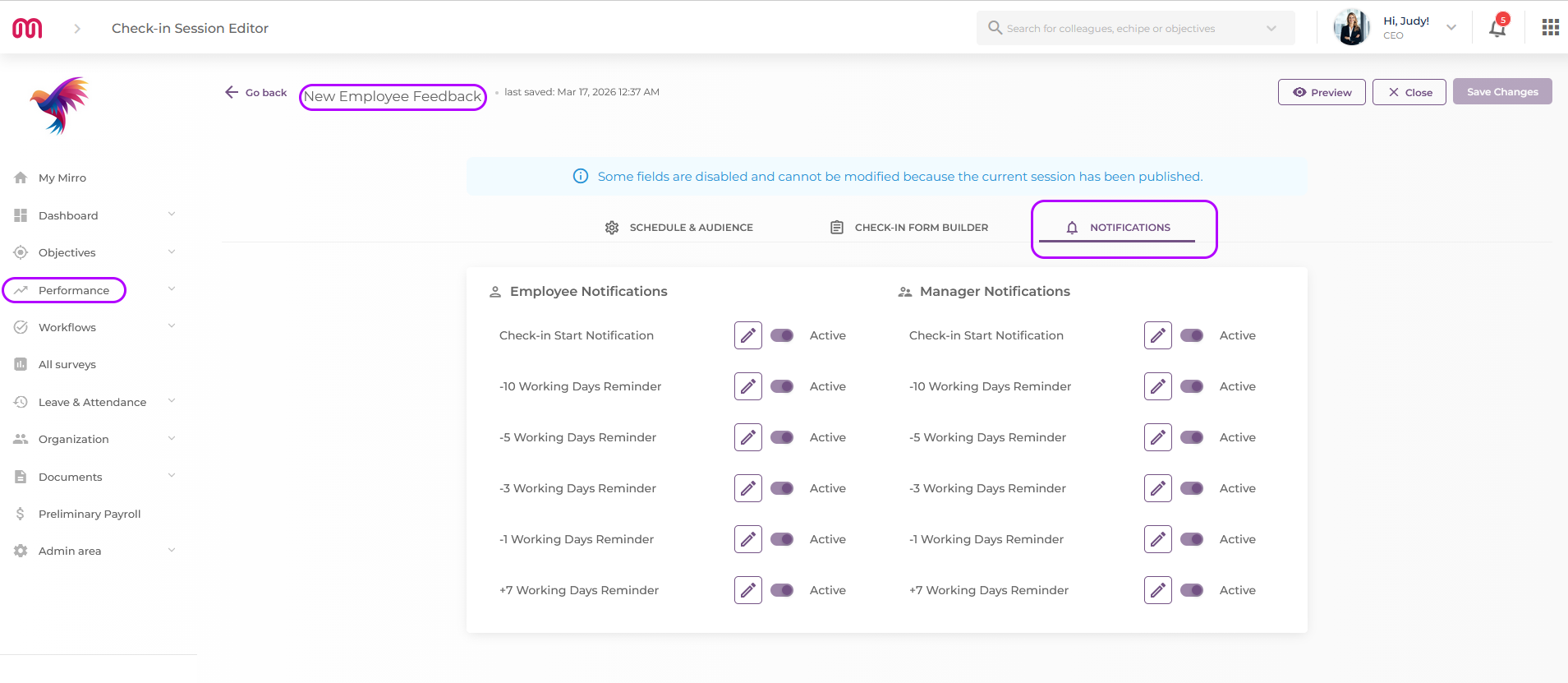
Go to the Performance module in the main menu, Check-in sessions section, open the check-in session you want to manage, and select the Notifications tab.
What you'll see in the Notifications tab
When you open the tab, you'll find a grid with all active notifications pre-populated and ready to use. By default, the following reminders are active for every session:
- Start of check-in — sent on the day the session begins
- −10 working days before the session ends
- −5 working days before the session ends
- −3 working days before the session ends
- −1 working day before the session ends
- +7 working days after the session ends
Each notification can be turned on or off independently for the employee and for their manager. This means you can send reminders to the manager without sending them to the employee, or the other way around — it's entirely up to you.
How to edit a notification
- Find the notification you want to change in the grid.
- Click the Edit button on that row.
- A window will open where you can:
- Give the notification a clear title so you can identify it easily in the grid
- Set the trigger — choose whether the timing is based on the Start Date or the End Date of the check-in session
- Set the number of days from that trigger — use a negative number for reminders before the date (e.g. −3) or a positive number for follow-ups after (e.g. +7)
- Edit the subject and the body of the message in any of the available languages
- Use the AI Translation feature to automatically translate your text into the other available languages
- Insert variable feature is helpful to make the message feel personal and relevant by inserting dynamic variables. To insert a variable, click on any of the variable buttons shown above the body field while your cursor is in the text area. The variable will be inserted at the position of your cursor.
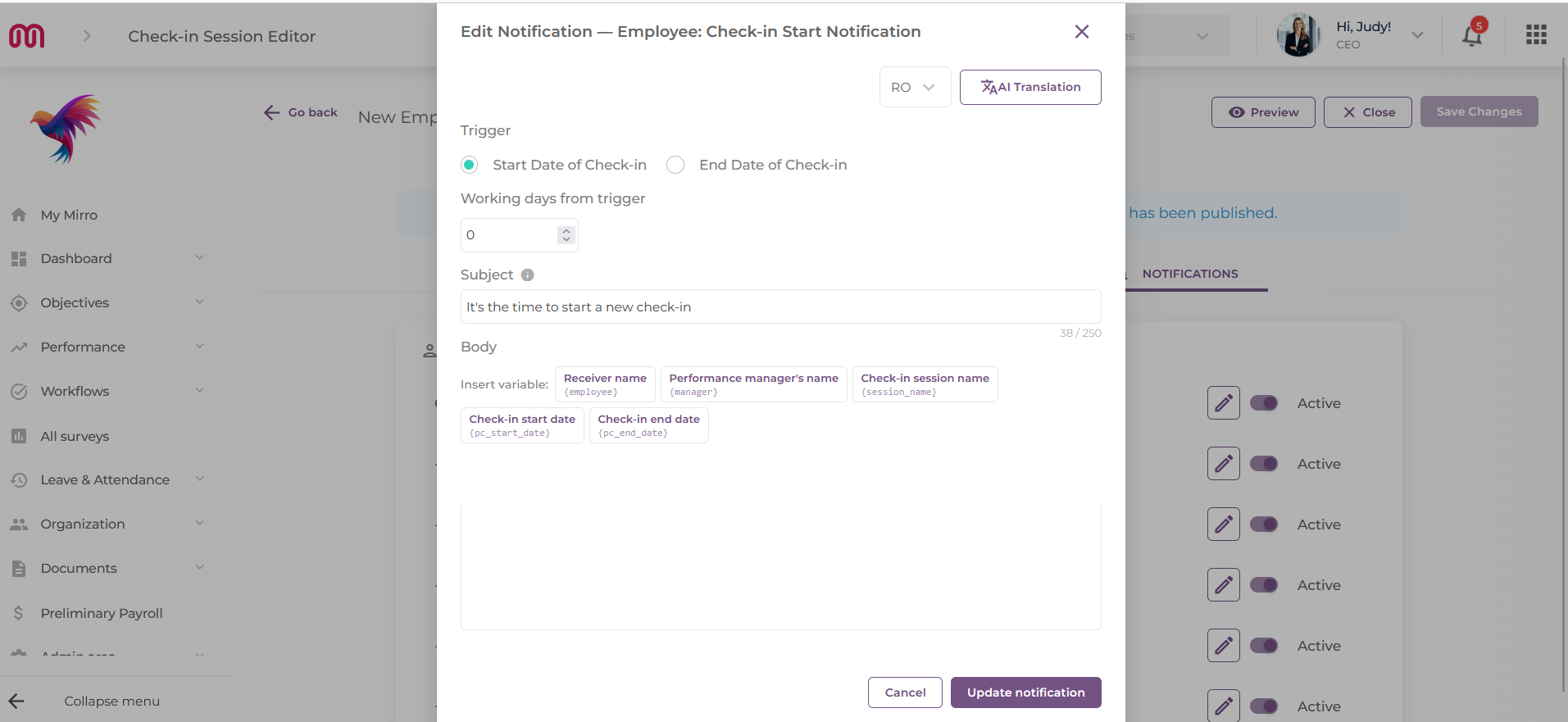
- Always include at least the Receiver name and the Check-in session name in your notification body. A message that says "Hi Ana, your Q2 Performance Check-in is starting today" is far more likely to be read and acted on than a generic reminder with no context.
- Make sure both the subject and the body are filled in — the Save button will remain inactive until both are completed.
- Click Save to apply your changes.
💡 Tip: Notifications are calculated based on working days, not calendar days and it does not take into consideration the public holidays. They also take into account your company's working schedule as set up in Company Settings. The last day of the check-in session is not counted, so plan your reminders accordingly.
Q: Can the employee and the manager receive notifications on different days?
A: Yes. Each notification can be set individually for the employee and for the manager — they don't need to match.
Q: What happens if a user has turned off Performance Check-in reminders in their personal notification settings?
A: If someone has disabled check-in reminders in their personal profile, all notifications for that person will be treated as a single group and will not be sent — regardless of how the session notifications are configured.
Q: Can I customise the message text for each notification?
A: Yes. When you edit a notification, you can write a custom subject and body for each language available in Mirro. You can also use the AI Translation feature to help you translate the text automatically.