![mirro_logo_pnk_slogan.png]](https://help.mirro.io/hs-fs/hubfs/mirro_logo_pnk_slogan.png?height=40&name=mirro_logo_pnk_slogan.png)
What eNPS means
eNPS stands for Employee Net Promoter Score. When you add an eNPS question to a survey, employees are asked to rate on a scale of 0 to 10 how likely they are to recommend the organisation as a place to work. Based on their answer, Mirro automatically categorises each respondent into one of three groups:
| Group | Score range | What it means |
|---|---|---|
| Promoters | 9–10 | Highly satisfied employees who are likely to recommend the organisation |
| Passives | 7–8 | Satisfied but not enthusiastic — they do not count toward the final score |
| Detractors | 0–6 | Unsatisfied employees who are unlikely to recommend the organisation |
The final eNPS score is calculated automatically: % of Promoters − % of Detractors. The result is a number between −100 and +100. A positive score means more employees are likely to recommend the organisation than not. The higher the score, the stronger the sentiment.
Where to find it
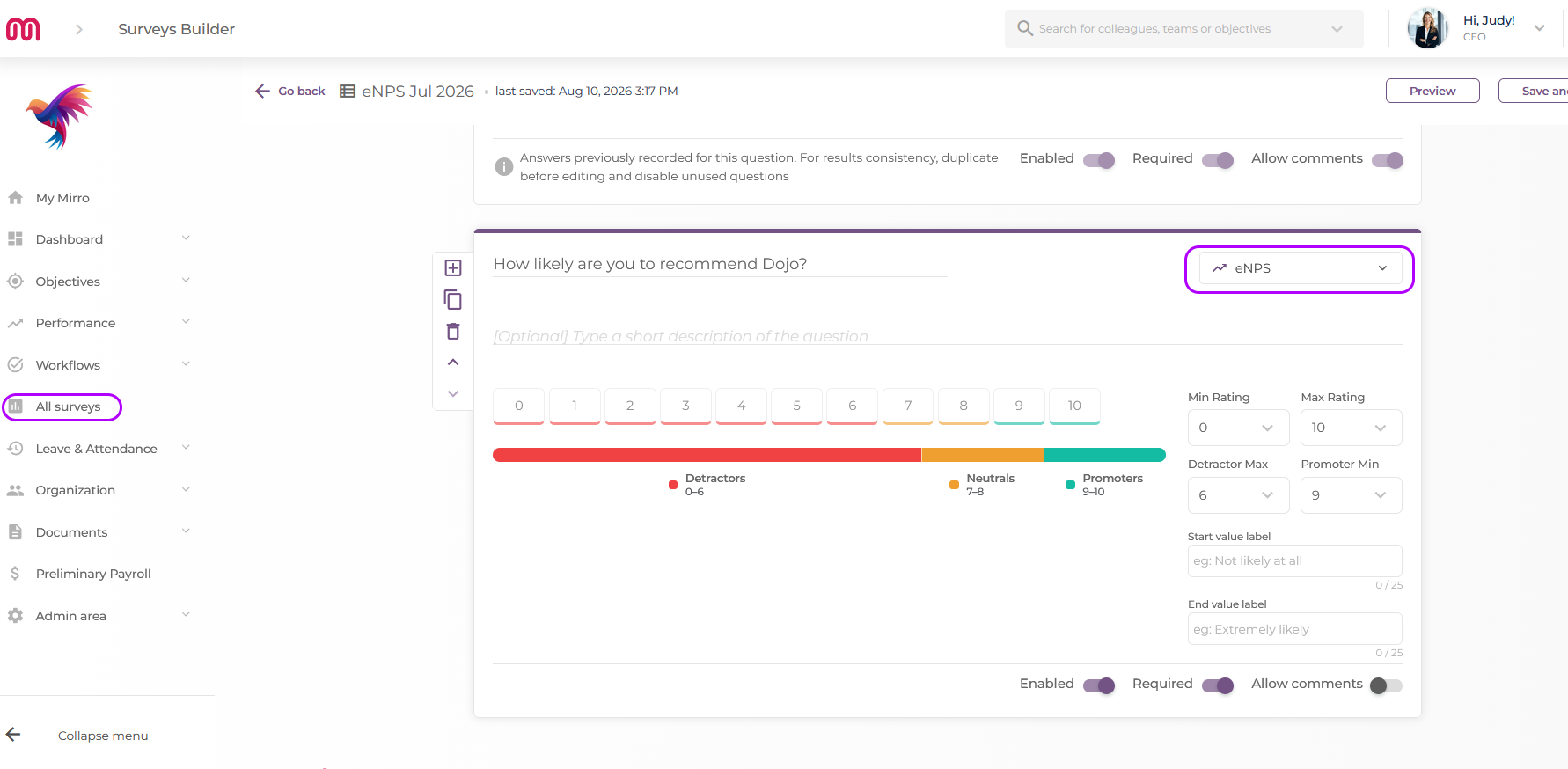
Go to All Surveys in the main navigation. Open an existing survey or create a new one, then go to the Questions tab. When adding a new question, select eNPS from the question type selector.
How to add an eNPS question
- Open the survey you want to edit from All Surveys.
- Go to the Questions tab.
- Click Add question.
- In the question type selector, choose eNPS.
- The default question text is pre-filled: "How likely are you to recommend [organisation name] as a place to work?" You can edit this text to match your organisation's tone if needed.
- Set whether the question is mandatory or optional.
- Save the question.
What the employee sees
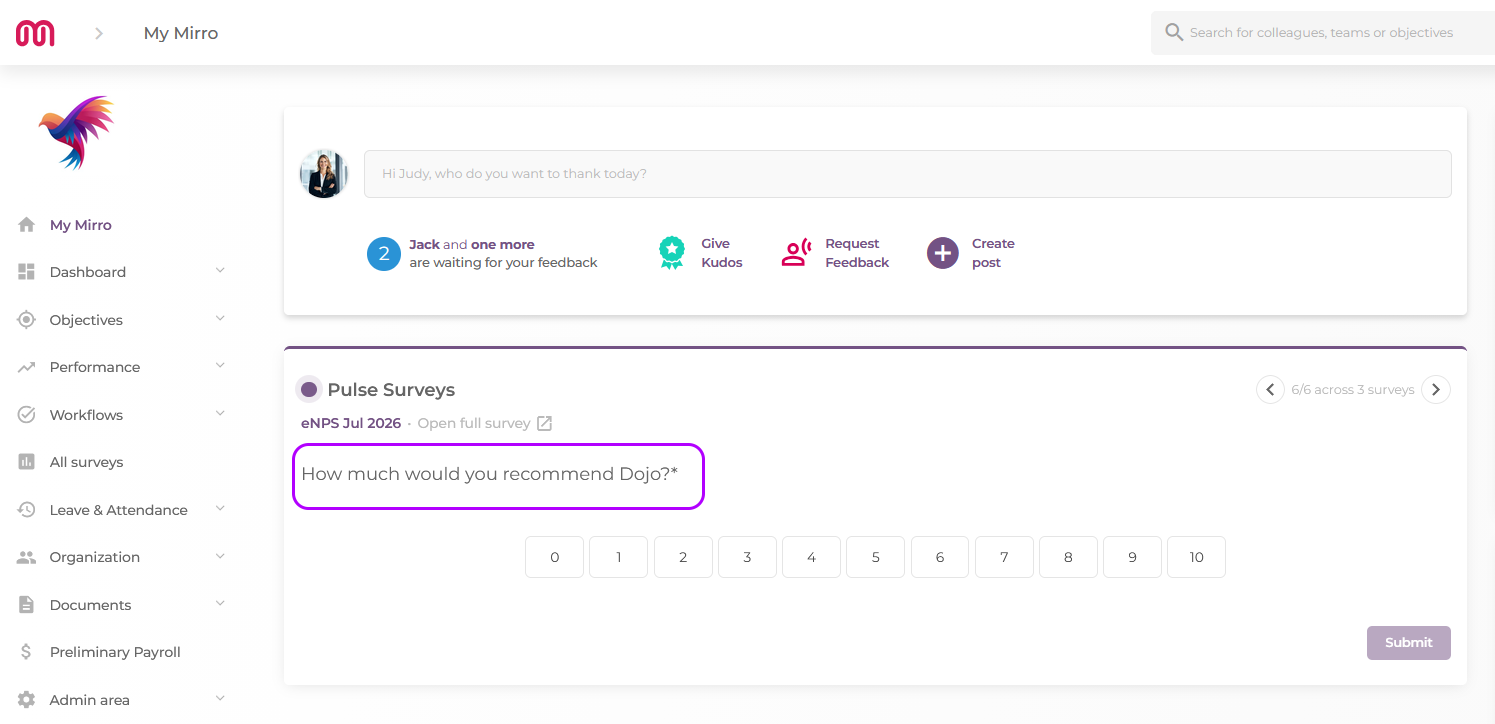
When an employee reaches the eNPS question in the survey, they see a 0–10 scale with clear labels at each end — 0 indicating "Not at all likely" and 10 indicating "Extremely likely." They select a single number and move to the next question. The interaction is simple and takes seconds.
How results appear in the dashboard
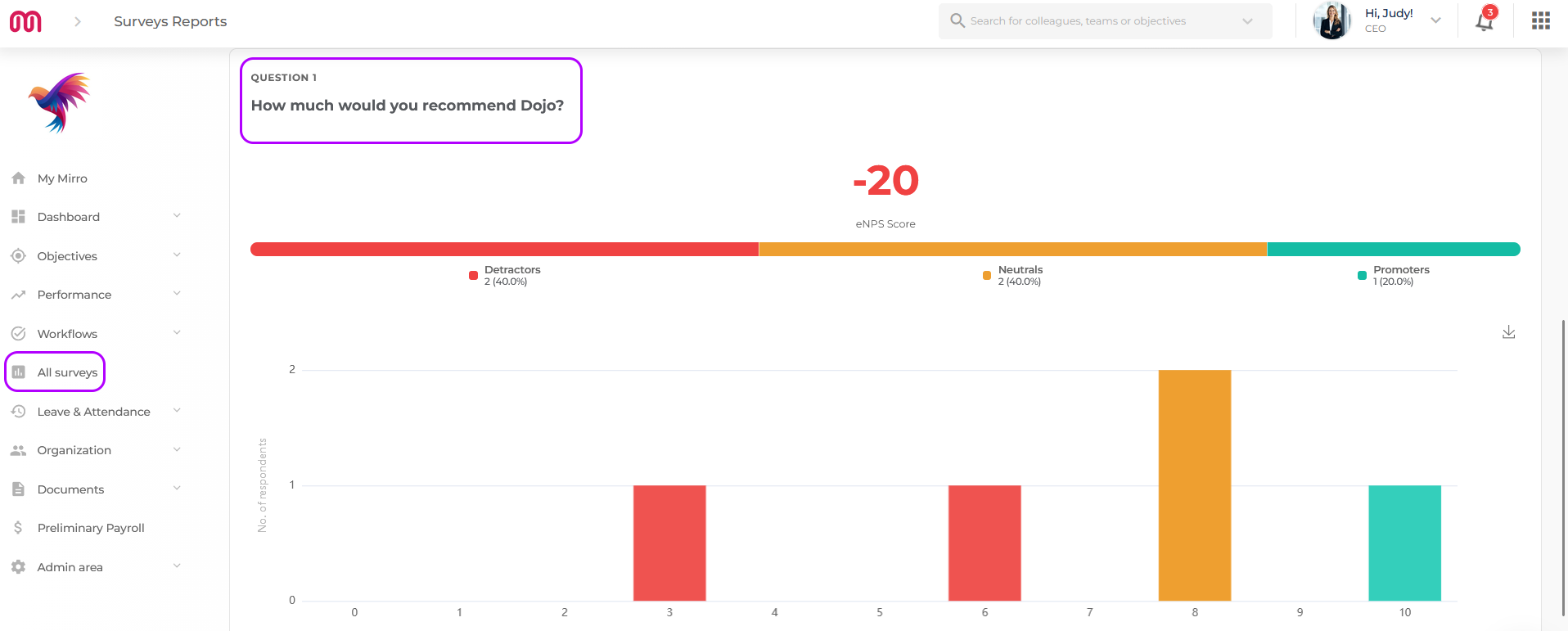
Once responses start coming in, the eNPS results are displayed automatically in the survey dashboard. You will see:
- The distribution of responses across the 0–10 scale
- The breakdown of Promoters, Passives, and Detractors as percentages
- The final eNPS score, calculated automatically as % Promoters − % Detractors
You can filter results using the Query Builder — by department, location, job role, tenure, or any other attribute — to understand how sentiment differs across your organisation.
Things to consider when using eNPS
- One eNPS question per survey is the standard approach. Adding multiple eNPS questions to the same survey would produce separate scores that cannot be meaningfully combined.
- Anonymity settings matter. If your survey is anonymous, employees are more likely to answer the eNPS question honestly. Consider your anonymity configuration before launching a survey where you want accurate sentiment data.
- Context questions add value. eNPS gives you a score, but not a reason. Consider adding one or two open-text questions after the eNPS question — for example, "What is the main reason for your score?" — to understand the drivers behind the number.
- Benchmarking over time is where eNPS becomes most powerful. Running the same eNPS question at regular intervals (quarterly or twice a year) lets you track sentiment trends and measure the impact of specific initiatives.
💡 Tip: eNPS is most actionable when broken down by team, department, or location using the Query Builder filters in the survey dashboard. A company-wide score of +20 tells you something — but knowing that one department scores −10 while another scores +45 tells you where to focus your attention.
Q: Can I use the eNPS question type in a Pulse Survey?
A: Yes. If you activate Pulse on a survey session that includes an eNPS question, the question will be delivered through the Activity Feed widget like any other question type. Please confirm with the product team whether the full 0–10 scale renders correctly in the Pulse widget or whether it opens in a focused modal.
Q: How is the eNPS score calculated if some employees skip the question?
A: The score is calculated based on the employees who answered the question. Skipped responses are not included in the Promoter, Passive, or Detractor counts and do not affect the final score.
Q: Can I see individual employee scores?
A: Visibility of individual responses depends on your survey's anonymity settings. If the survey is anonymous, individual scores are not visible — only the aggregated breakdown and final score are shown.