![mirro_logo_pnk_slogan.png]](https://help.mirro.io/hs-fs/hubfs/mirro_logo_pnk_slogan.png?height=40&name=mirro_logo_pnk_slogan.png)
Who can edit an active check-in session?
You need to make sure that you have the proper access rights defined in your profile, to be able to edit an active check-in session, such as Company Performance Admin or Check-in Session Publisher.
Where do I find it?
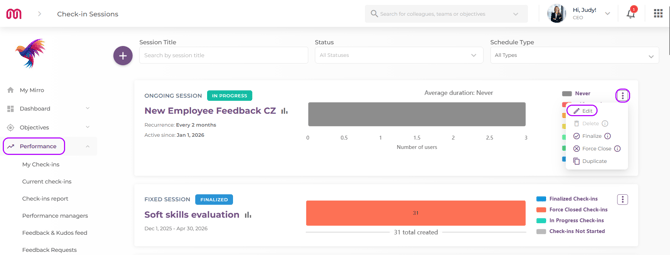
You will have to access the Performance module in the main navigation, access the Check-in Session section, open the check-in session you want to edit, and select the Check-in Form Builder tab:
Understanding form versions
Every time you make changes to the form of an active session and save them, Mirro creates a new version of that form. Think of it like publishing a rewritten edition of a document — the previous version does not disappear, it just no longer applies to new check-ins.
This is how versions work:
- Check-ins that have the status in progress continue with the form version they were originally generated with — nothing changes for employees mid-flow;
- Check-ins generated after you publish the new version use the updated form. It is applicable for all check-ins with the status not started;
- In the module Dashboard- Performance Insights, results reflect the form version that was active when each check-in was generated — so if you had 4 questions in version 1 and added 2 more in version 2, you may see some employees with 4 questions and others with 6, depending on when their check-in was opened.
Let's take the scenario below as an example:
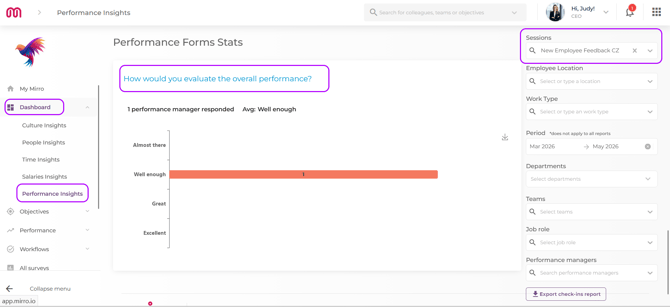
We have the check-in session called New Employee Feedback CZ. The first version of the check-in session had only one question addressed to the manager called How would you evaluate the overall performance? Once this question registered answers, they were displayed in the Performance Insights dashboard, as seen below:
New employee Feedback CZ check-in session V1
The same check-in session has been updated, including a second question addressed to the manager, called What type of learning resources does the employee name needs? Once answers were registered for the second question, too, they were available in the Performance Insights dashboard, as seen below:
New employee Feedback CZ check-in session V2
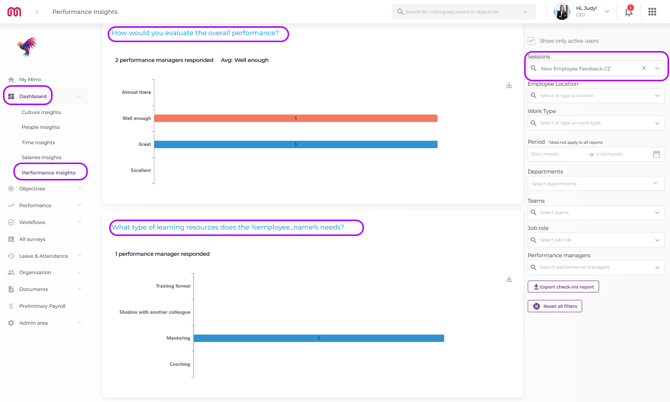
💡Tip: It is highly important for the questions to be set to be shown in the Performance Insights dashboard when they were added at the level of the Check-in form builder.
What you can change in a new form version?
While a check-in session is running, you can publish a new version of the form with any of the following changes:
-
Add or remove questions — introduce new questions or remove ones that are no longer relevant;
-
Add or edit sections — create new sections or update the title and description of existing ones;
-
Update question settings — adjust options like whether a question allows further discussion, whether it asks for more details, whether it appears in Performance Insights, and whether it appears in the employee's history;
These changes can be made on both Fixed and Ongoing sessions.
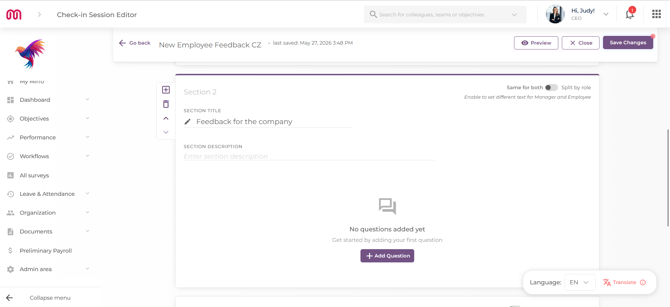
How to publish a new form version
Changes on an active session are not saved automatically. Unlike draft sessions — where every change saves instantly — active sessions use a deliberate publish flow so that nothing goes live until you decide it is ready.
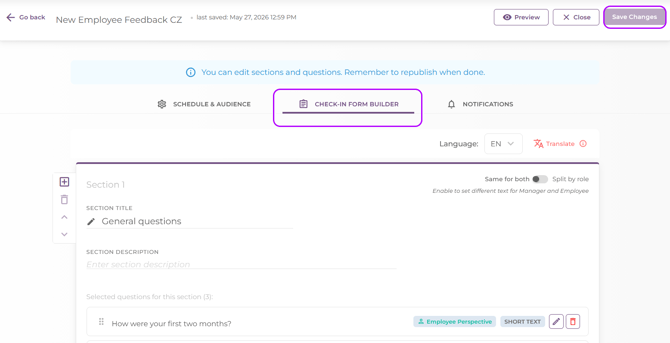
1. Make your changes in the Form Builder — add sections, edit questions, update settings. Your edits are held locally and nothing is sent to Mirro yet.
2. When you are ready, click Save Changes in the header.

3. A confirmation message will appear, letting you know that saving will publish a new version of the form and that it will apply to the next check-ins generated — not to check-ins already open.
4. Choose Save to publish and continue editing, or Save and Exit to publish and return to the session list.
If you change your mind before publishing, click Discard to undo all your local changes and return the form to its last published version. Nothing will be sent to Mirro.
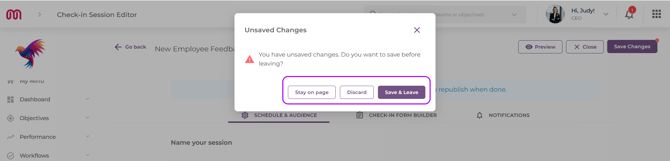
💡 Tip: If you navigate away from the Form Builder tab — for example to check the Preview or Schedule tabs — your unpublished changes are kept in memory and will still be there when you come back. The Save Changes button will remain active in the header as a reminder. Just make sure to publish before closing the browser tab entirely, as unpublished changes do not survive a full browser close.
How question setting changes behave across existing check-ins?
When you publish a new check-in form version, most changes apply only to check-ins that have the status as not started. However, some question setting changes take effect across all existing open check-ins immediately:
|
Setting |
When the change takes effect |
|---|---|
|
Allow further discussion |
Applies to all check-ins, in progress or not started, immediately |
|
Ask for more details (including required) |
Applies to all check-ins, in progress or not started, immediately |
|
Show in Performance Insights |
Applies to all check-ins, in progress or not started, immediately |
|
Show in employee History |
Applies to all check-ins, in progress or not started, immediately |
|
Box question — Restrict employee view |
Applies to all check-ins, in progress or not started, immediately |
|
Radio question — Vertical / Horizontal layout |
Applies to all check-ins, in progress or not started, immediately |
FAQ - there isn’t a single article without this section, right? And on top of that, it’s super useful.
-
How many versions can a session have?
There is no limit. Every time you make changes and click on Save Changes on an active session, a new version is published. Each version is stored and used to correctly display results in the Dashboard for the period it was active.
-
If I remove a question in a new version, will it disappear from check-ins already in progress?
No. Employees with an already in progress check-in will continue to see the original questions from the version their check-in was generated with.
-
Can I edit the form of a finalized session?
No. Once a session is finalized the Form Builder is read-only. New versions can only be published while the session is active.