![mirro_logo_pnk_slogan.png]](https://help.mirro.io/hs-fs/hubfs/mirro_logo_pnk_slogan.png?height=40&name=mirro_logo_pnk_slogan.png)
Mirro lets you define reusable employment contract templates for each employee, reducing manual work and the risk of errors. You can create as many standard contract types as your organization needs and update them at any time.
Define as many types / standard contracts as you will use and come back for specific customization at all times!
Mirro supports Contracts of Indefinite Duration, Defined Period, Apprenticeship, and Zero-Hour Contracts.
Start defining different types of Employment Contracts:
To define a new contract template in Mirro, you will need to access the Admin Area module- Standard contracts section and use the option Add new contract type. A new form will be available which should be filled-in with the contract details that you would like to have in the application:
- Name - the name of the template;
- Term- the type of term: indefinite term, fixed term, zero hour, or apprenticeship;
- Vacation- represents the field about the vacation days stipulated in contract;
Please note that this field is pure informative, without replacing the leave rules which you can set-up based on the How to define the leave rules article. - Additional vacation - represents the field where you will be able to specify if the user is going to have any extra days-off stipulated in contract. Please note that this field is pure informative, without replacing the leave rules which you can set-up based on the How to set-up leave details article;
- Trial period, resignation notice and notice period - will give you the possibility to define the period which the user should stay if the contract is interrupted;
- Quota- the daily quota of the user;
- Weekly quota- the weekly quota of the user;
- Working address- the address of the user;
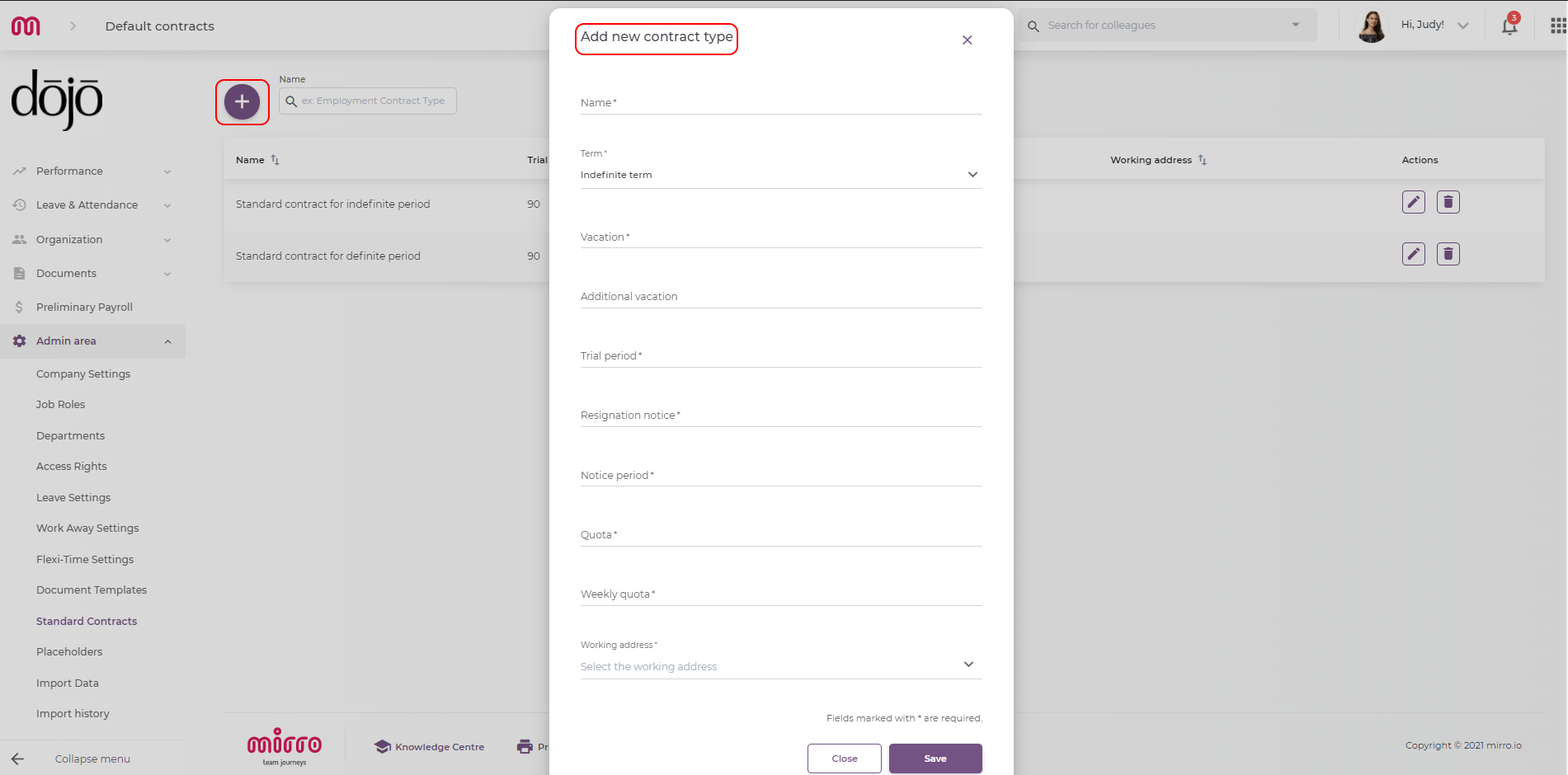
Once you have filled in all the details, select Save. The template will then appear in the Standard contracts list, where you can update it at any time.

Defining the contracts templates in the application will make it easier for you to activate a contract for any user. The details specified in the contract will have impact on the preliminary payroll exports, as based on the contracts the quota will be exported in the reports.
You can create as many templates as your organization requires. Once your templates are defined, you can activate contracts for employees directly within Mirro.
To activate a contract for a specific employee, navigate to the employee's profile, select the Contracts tab, choose Add contract, select the relevant template, complete any employee-specific fields, and save.