![mirro_logo_pnk_slogan.png]](https://help.mirro.io/hs-fs/hubfs/mirro_logo_pnk_slogan.png?height=40&name=mirro_logo_pnk_slogan.png)
Where to find it
Access the Leave & Attendance module, select Shifts & Schedule, and find the employee and date you want to change. See How to view and filter the team schedule if you need help locating them first.
Changing a single day
1. Click the cell for that employee and date. A popover opens showing the day's current shifts, if any.
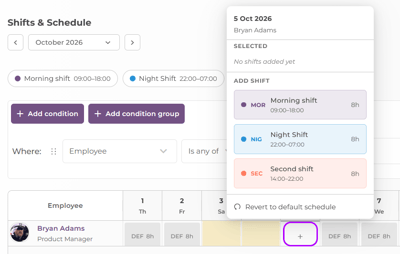
2. To add a shift, select it from the Add shift list. The shift replaces whatever that day's default schedule would otherwise be.
3. To remove a shift, select the × on its chip in the Selected section. If you remove every shift from the day, the cell becomes blank, as if you had used Clear schedule.
4. To restore the location's default schedule for that day, select Revert to default schedule.
5. To empty the day completely, select Clear schedule.
6. Press Escape to close the popover.
💡 Tip: A shift type already assigned to a day is removed from the Add shift list for that day, so you will not see it twice. It reappears in the list once you remove it from that day.
Changing several days at once
1. Hold Ctrl (or Cmd on a Mac) and click individual days to select several non-adjacent days for the same employee. Hold Shift and click to select every day in a range instead. On a touch device, press and hold a day to start a selection.
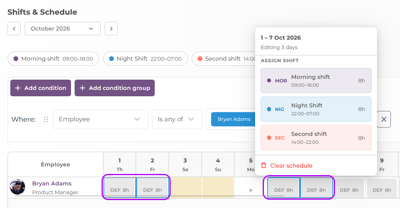
2. With days selected, the popover shows Assign shift, Revert to default schedule, and Clear schedule for the whole selection instead of a single day.
3. Selecting Assign shift and choosing a shift type replaces every selected day's shifts with that one shift.
4. Revert to default schedule and Clear schedule apply to every selected day at once.
5. Press Escape to clear your selection.
💡 Tip: You can assign or clear a shift on any kind of day, including a public holiday, a weekend, a day off, or a day with an approved leave request, and even on a day that already has more than 24 hours of shifts on it. Mirro does not block the action; it is up to you to check that it makes sense for that employee.
An employee's leave, flexi time, overtime, and hours off are never affected by these actions. Assigning, removing, reverting, or clearing a shift only changes the shift itself.
FAQ
Q: Can I undo a shift I just removed or a schedule I just cleared?
A: There is no undo button. If you need the shift back, assign it again from the popover.
Q: Will clearing a schedule also remove an employee's approved leave for that day?
A: No. Leave, flexi time, overtime, and hours off stay exactly as they were; only the shift assignment changes.
If the shift you need is not in the list yet, see How to create, edit, and delete shift types. If you need more details, contact us at support@mirro.io.