![mirro_logo_pnk_slogan.png]](https://help.mirro.io/hs-fs/hubfs/mirro_logo_pnk_slogan.png?height=40&name=mirro_logo_pnk_slogan.png)
Where to find it
Access the Leave & Attendance module and select Shifts & Schedule. The shift types already defined appear as colored chips in a row above the grid.

Creating a shift type
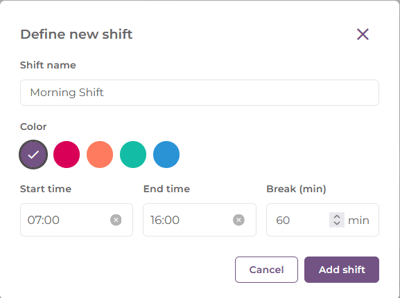
1. Select Add shift.
2. Enter a Shift name, for example Morning or Night.
3. Pick a Color from the available swatches. This color identifies the shift everywhere it appears on the grid.
4. Set the Start time and End time for the shift.
5. Enter a Break (min) if the shift includes one. You can leave it empty if it does not apply.
6. Select Add shift to save. The shift becomes immediately available to anyone with the right to map shifts.
Editing or deleting a shift type
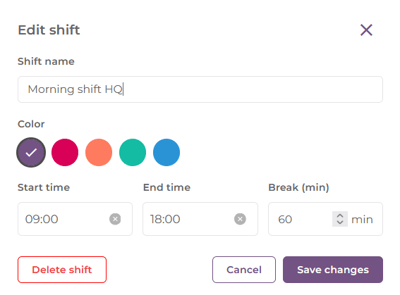
1. Select the shift type's chip above the grid.
2. Change the name, color, start time, end time, or break, then select Save changes. Mirro warns you that changes apply to every month still open; months that are already closed keep their original values.
3. To remove a shift type entirely, select Delete shift instead. Mirro warns you that deleting removes the shift from every employee it is currently assigned to, in every open month; closed months are not affected.
💡 Tip: Deleting a shift type does not erase history. For a month that is already closed, employees keep whatever shift they had at the time. For an open month, removing a shift leaves the day blank, as if you had used Clear schedule, unless the employee still has other shifts, flexi time, overtime, or hours off on that day.
⚠️ Warning: Editing or deleting a shift type changes it everywhere it is used in open months, for every employee it is assigned to. Check who is using a shift before changing it if that matters to you
FAQ
Q: Can a manager or Organization Specialist create a new shift type?
A: No. Only the Preliminary Payroll access right (company wide or per location) can create, edit, or delete shift types. Other access rights can map existing shift types but cannot change them.
Q: If I edit a shift's time range, does it update everyone already assigned to it?
A: Yes, for every open month. Closed months keep the shift's values as they were when the month was closed.
Once your shift types are defined, your team can start mapping them. See How to assign, remove, or clear shifts for your team. If you need more details, contact us at support@mirro.io.