![mirro_logo_pnk_slogan.png]](https://help.mirro.io/hs-fs/hubfs/mirro_logo_pnk_slogan.png?height=40&name=mirro_logo_pnk_slogan.png)
Shifts & Schedule gives you a company-wide or location-wide view of everyone's shifts, side by side on a calendar view. What you see depends on your access rights: some access rights show everyone in the company, others are limited to one location or to your own direct people.
Where to find it
Access the Leave & Attendance module and select Shifts & Schedule. This option only appears if you have one of the access rights listed below.
- Preliminary Payroll sees and can edit everyone in the company.
- Preliminary Payroll per location sees and can edit everyone at their location.
- Organization Specialist sees everyone in the company; Organization Specialist per location sees everyone at their location.
- Company Time Off Approver sees everyone in the company.
- Time Off Approver (automatically granted when you are set as someone's direct time off approver) sees only the people you are the time off approver for.
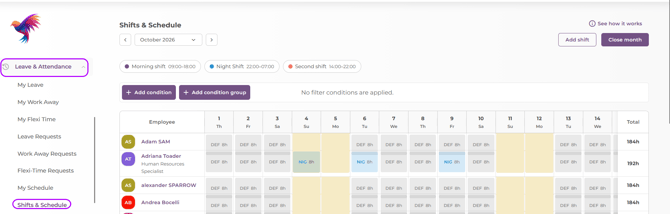
A basic employee does not get this menu option at all. They only see My Schedule section.
Reading the calendar
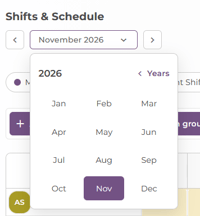
1. Use the month selector at the top. You can go back as far as the month your company joined Mirro, and forward up to two years.
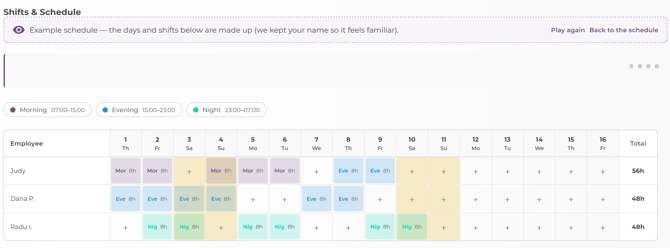
2. Check the row of shift types at the top of the grid. Each one is a colored chip showing its name and time range.
3. Read the calendar itself: one row per employee, one column per day of the month, and a Total column on the right showing their scheduled hours for the month.
4. Look for colored chips in each cell to see which shift an employee is working that day. A cell can also show a holiday, a weekend, a day off, leave (with a Pend or Appr badge for the leave request's status), half day, flexi time, overtime, or hours off.
Pend stands for requests that were not yet approved.
Appr stands for requests that were approved.
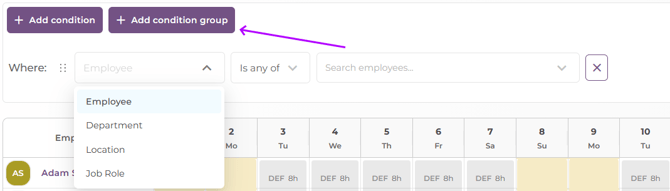
5. Use the filters above the grid to narrow the list by Employee, Department, Location, or Job Role. Filters only search within the employees you already have access to.
6. Select See how it works to open a short interactive walkthrough with sample data. It shows how to assign a shift with a click, remove one with another click, hold Ctrl to pick several separate days, and hold Shift to pick a range of days, since these shortcuts are not explained anywhere else in the page.
💡 Tip: The grid only lets you make changes while the month is open. Once a month is closed, every cell in it becomes read only for everyone, no matter which access rights you have. See How to close or reopen a shifts accounting month.
FAQ
Q: Why don't I see every employee in the company?
A: Some access rights are scoped to one location, and the Time Off Approver access right is scoped to the people you are the time off approver for. You see exactly the employees your access rights cover.
Q: Can I assign or remove a shift from this screen?
A: Yes, if your access rights allow it. See How to assign, remove, or clear shifts for your team.
Once you can see the right people on the grid, the next step is making changes to their shifts. If you need more details, contact us at support@mirro.io.