![mirro_logo_pnk_slogan.png]](https://help.mirro.io/hs-fs/hubfs/mirro_logo_pnk_slogan.png?height=40&name=mirro_logo_pnk_slogan.png)
Where to find it?
You will find the Roll-up toggle in two instances:
-when you add a new objective;
-when you edit an existing objective;
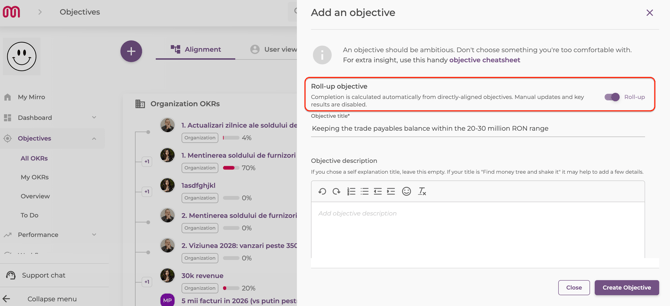
How to create a roll-up objective?
- Access the module Objectives and click either on the option All OKRs or My OKRs;
- Click on "+" to add a new objective:
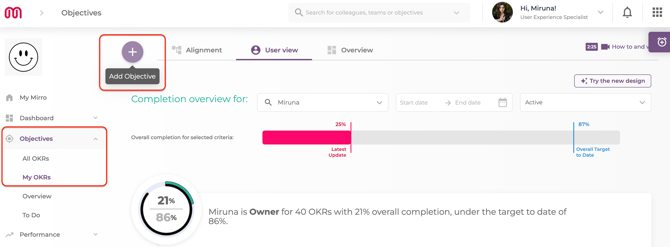
- Create your new objective: add your title, description, choose an objective type and add any other relevant information. Don't forget to switch Roll-up to On;
- Please be advised that Roll-up only works on objectives without KRs. Remove any existing KR first if it does;
- Align the objectives you want it to track underneath it- these are the objectives that will feed its progress;
- Done! The objective's progress now updates automatically as its aligned objectives update- nothing to edit by hand;
Based on the roles that you have in Mirro, different objectives can be added:
- A basic user can add individual objectives;
- A team leader can add individual objectives and team objectives;
- A department's coordinator can add department, team and individual objectives;
- A user with the access right OKRs manager can add and edit objectives at all levels, including organization objectives;
Roll-ups can stack: If an objective aligned to your roll-up is itself a roll-up, its own aligned objectives will feed it- and it will, in turn, feed the roll-up above it. Think of it like umbrellas nested under umbrellas: build as many layers as your org needs, and the top one will always reflect what's happening underneath, automatically.
Example
- 🏢 Company objective — "Boost overall employee engagement" (Roll-up: On, no KRs)
- fed automatically by ↓
- 🏬 Department objective — "Boost engagement — Customer Success" (Roll-up: On, no KRs)
- fed automatically by ↓
- 👥 Team objective — "Speed up new-hire onboarding" (regular objective, with real KRs)
- KR: Time to first resolved ticket — 10 days → 5 days
- KR: New-hire satisfaction score — 60 → 80
As the Customer Success team updates their KRs, their Team objective's progress updates as usual. Because that objective is aligned to the Department roll-up, the Department objective updates itself- and because the Department objective is also a roll-up aligned to the company objective, the company-level number updates too. Nobody touches the top two levels by hand; they just reflect what's true underneath.
How to define additional details of an objective?
After saving the changes, you will be brought to the details of the objective to finish the process. In this section, you have the possibility to:
-activate or deactivate the roll-up toggle;
-visualize and edit the objective's details;
-add contributors ensuring a teamwork effort;
-add a start date and end date for the objective;
-align the objectives;
Visualize and edit the objective's details:
Add a contributor to the objective:
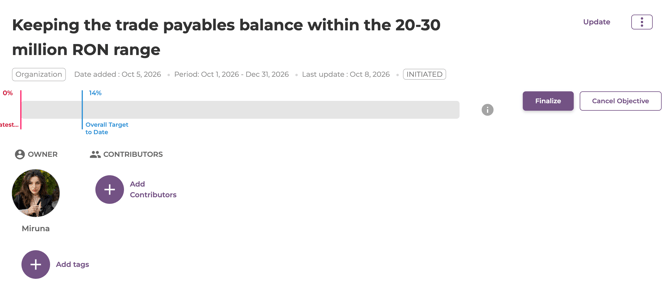
Only the owner of the objective will have the right to make any changes to the objective itself.
FAQ:
1. Do I need admin rights or a feature flag to use this?
No, it's available to every user, on both interfaces, with nothing to enable first;
2. Can I add Key Results to an objective after turning Roll-up on, or do I need to turn it off first to add KRs?
No, the option to add a key result will not be available if the Roll-up toggle is turned on;
3. What happens to the objective's progress history if I switch Roll-up off later?
If you have an objective with the progress of 70% and set it as Roll-up afterwards, the progress will be canceled and it will automatically transform to 0%;
If you have an objective with the progress of 70% and set it's parent as Roll-up, the progress from the child objective will also reflect to the parent objective;