![mirro_logo_pnk_slogan.png]](https://help.mirro.io/hs-fs/hubfs/mirro_logo_pnk_slogan.png?height=40&name=mirro_logo_pnk_slogan.png)
First of all, you will need the access right Company Performance Admin.
By default, Mirro offers a standard performance check-in form, with preset questions. To view these questions, you can navigate to the module Admin Area- Questions library. In this section, you can view all the existing questions, edit, delete or copy them, or you can create new ones: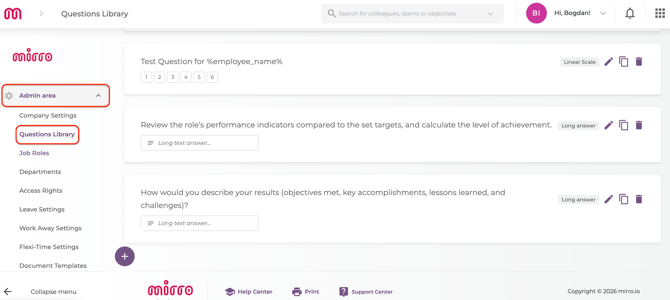
How do I create new questions?
To support different types of manager- employee conversations, all check-in forms in Mirro are built from a shared Question Library. Start by defining your questions in the Admin Area module- Questions Library section.
From this page, click on the "+" sign to create a new question: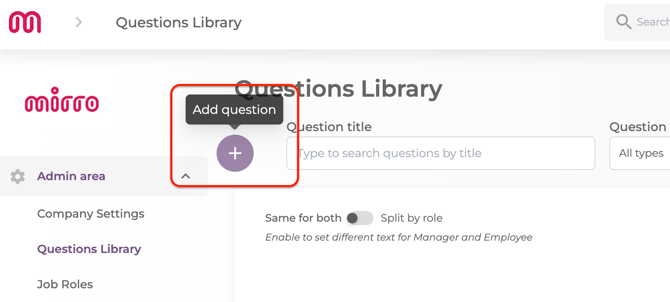
A builder form will open and it will let you to customize your question and type of answer:
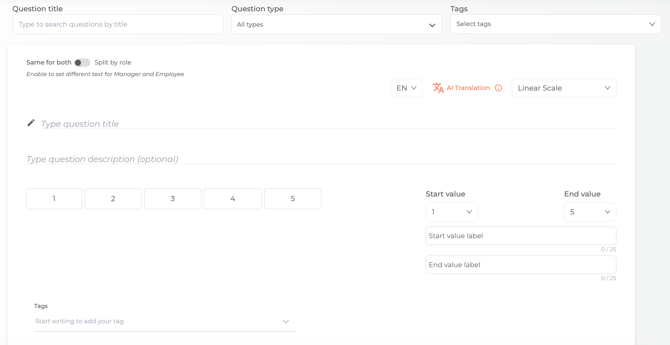
Here, you will have to complete the following data:
-same for both roles: enable this option to define different question text for managers and employees;
ex: Let's imagine that we would like to evaluate the performance level of an user and from the user perspective the question will be How would you evaluate your level of performance? and from the manager's point of view the question will be How would you evaluate the level of the employee's performance?
-language: we offer a default list of languages (Romanian, English, Spanish, Czech, Portuguese), and an AI tool, that lets you select the language you want to translate the question from, and the languages you want to translate into: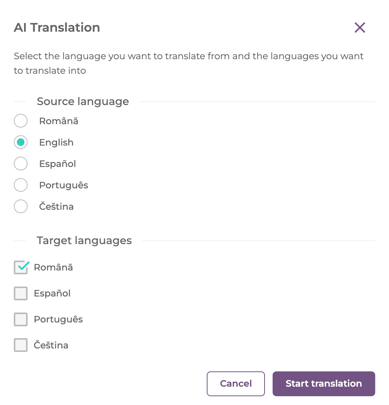
-question title;
-question description (optional): if you want to provide more context about the question, you can specify a description to help the person reading the question to understand it better;
-question type: you will find a drop down list from which you can select the type of question you want:
*linear scale- answer of a certain value (ex. from 1 to 5); the user will have to select a value from this interval;
*multiple choice- multiple choices of answer will be created and the user will be able to select only one answer;
*checkboxes- multiple choices of answer will be created and the user will be able to select multiple answers to the question;
*short text- the user will be able to write a short text as an answer between 1–255 characters;
*long answer- the user will be able to write a longer text as an answer between 1-15000 characters;
*rating scale- a scale (ex. from 1 to 5) where you can use stars, hearts, smiley faces or like buttons; the user will have to select one item from this interval;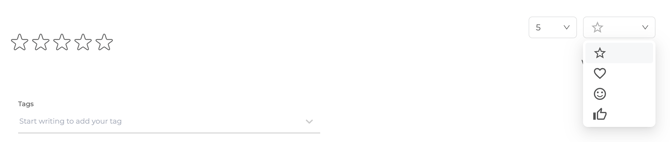
*dropdown- you can create a dropdown list with multiple answers, and the user will be able to select one answer from the list;
*slider- you will be able to create a slider with a certain start and end value; the user will have to choose a value from this slider;
*box- the box is a matrix that maps employee performance against their future potential;
-tags: each question can have different tags that can help you navigate them easier; for example, some useful tags could be managers, 1:1's, review, check-in, onboarding etc; that way, you can assign each question to a specific category, and you can filter them by these tags;
After you're done completing the details, you can click on Save question, and it will be automatically saved.
How do I edit a question?
To edit a question, from the same page (Admin Area- Question library), you have to find the question that you want to change and click on Edit question:
To find the question, you can use the filters on top of the page, and search after its name, type or tags:
The question builder will open and you will be able to edit the question accordingly.
You can also duplicate or delete the question from here as well.
When can I edit a question?
A question can be edited when it is not on any active form.
If you edit a question that was on an active form previously, this question will appear with the new edits on the previous form as well.
When can I delete a question?
A question can be deleted only if it wasn't added to any active forms. Once added on an active form, it can no longer be deleted.
What is an active form?
You've created the questions, now it's time to put them all together. That is an active form: a structure where all your questions are settled, so that the managers and their mentees can answer these questions and have a discussion based on the answers.