![mirro_logo_pnk_slogan.png]](https://help.mirro.io/hs-fs/hubfs/mirro_logo_pnk_slogan.png?height=40&name=mirro_logo_pnk_slogan.png)
Where to find it
To finalize or reopen a single workflow run, open that run's board (from the Processes overview or from a People I manage card) and use the status toggle in the board's header.
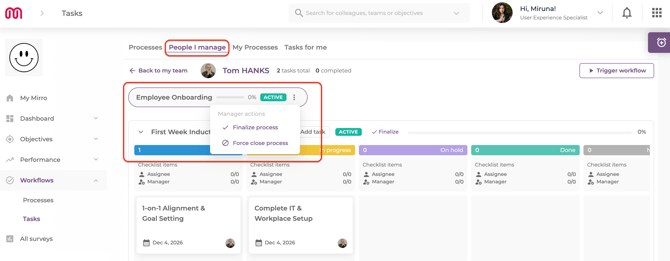
To finalize, force close, or reopen the whole process, open the employee's focus view (drill down from Processes or People I manage) and use the Manager actions menu next to the process's status tag.
Finalizing or reopening a single workflow run
1. Open the employee's view for that process and find the workflow's board.
2. Select Finalize in the board header. The run locks immediately.
3. To bring it back, open the same board and select Reopen. The run returns to Active and nothing about its progress is reset.
Finalizing, force closing, or reopening the whole process
1. Open the employee's focus view and select Manager actions next to the process's status tag.
2. While the process is active, you can choose Finalize process or Force close process.
- Finalize process locks in every workflow run under this process for this person at its current state. No workflow under this process can be run for them again until you reopen it.
- Force close process marks the process as not completed successfully for this person. Every workflow run under it is force closed and its tasks locked, until reopened.
3. Once the process is finalized or force closed, the same menu offers Reopen process instead. Reopening restores every workflow run under it to where it was, with nothing reset.
⚠️ Warning: Force closing a process is the option to use when the outcome was not successful, not a shortcut for an early finish. Use Finalize for a process that genuinely completed.
💡 Tip: While a run or a process is finalized or force closed, nothing in it can be added, edited, or changed, including task status, until it is reopened.
Who can do this
Finalizing, force closing, and reopening are available to Workflow Admin, Workflow Manager, Workflow Manager per location (for their location), the employee's own manager, their department's head, and a department performance administrator. See How access rights work in Workflows.
Nobody can finalize, force close, or reopen their own process. This applies even to a manager: if the process is running for you personally, these actions are not available on your own view, only on someone else's.
FAQ
Q: What's the difference between Finalize and Force close?
A: Finalize is for a process that completed the way it was meant to. Force close is for one that did not, and marks it as unsuccessful for that person. Both lock the process the same way, and both can be reopened.
Q: If I reopen a process, does the person lose their progress?
A: No. Reopening restores every workflow run under the process exactly as it was when it was finalized or force closed. Task statuses, comments, and checklists are all preserved.
Q: Can I finalize a process that is running for me?
A: No. This is never available on your own process, regardless of which access rights you hold.
If you need more details, contact us at support@mirro.io.