![mirro_logo_pnk_slogan.png]](https://help.mirro.io/hs-fs/hubfs/mirro_logo_pnk_slogan.png?height=40&name=mirro_logo_pnk_slogan.png)
The access rights that build processes
These three access rights can access the option Processes from the module Workflows, and use the process builder. Nobody else can see this menu item at all: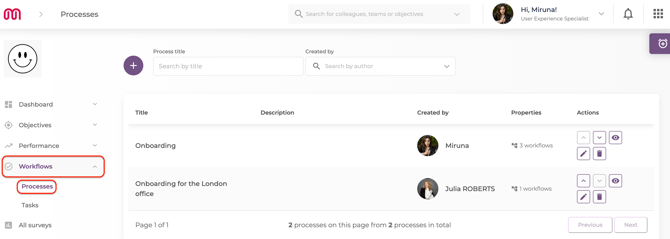
- Workflow Admin sees, creates, edits, deletes, and duplicates every process and workflow in the company, no matter who created it. It is the only access right that can reorder the Processes list itself.
- Workflow Manager has the same reach as a Workflow Admin over running processes (triggering a run for anyone, finalizing or reopening any run, and editing tasks even when Require manager approval is on), but can only view, edit, delete, or duplicate the processes and workflows they personally created. They cannot reorder the Processes list.
- Workflow Manager per location works the same way as Workflow Manager for its own created processes and workflows. The difference shows up on the audience and run side: a process built by a Workflow Manager per location can only target and be triggered for employees at the locations this access right was granted for, and their manager-level reach over a run (triggering it, finalizing it, editing an approval-gated task) only extends to employees at those same locations.
💡 Tip: These three access rights are assigned the same way as any other access right in Mirro. See How to grant access rights to a user.
The access rights that only manage tasks
Users with these access rights only see the Tasks menu entry, where a People I manage tab shows them the processes running for the people below them in the hierarchy.
- Head of Department and Department performance administrator manage tasks for everyone in their department, including everyone below a department head they are also head of (one level of "head of department of a head of department" is included).
- A Performance Manager run tasks for the people who report to them.
- A Direct timeoff approval (assigned automatically to whoever is set as another employee's coordinator) manages tasks for the people they coordinate.
Any of these can manually trigger a process for the people below them, edit a task on their behalf, tick or edit the Manager Checklist, and finalize, force close or reopen a run for them. See How to track your team's processes.
💡 Tip: When a task has Require manager approval turned on, any of the access rights on this page (both layers) can still edit it and change its status for the employee. Only the plain assignee is blocked. See What "Require manager approval" means for your tasks.
Everyone else
An employee with none of the access rights only sees their own tasks, in Tasks- My Processes and Tasks- tasks for me. They can update a task's status themselves unless Require manager approval is on for that task, and they can always tick their own Employee Checklist items. They never see who else is running a given process, and they can never finalize, force close, or reopen their own run: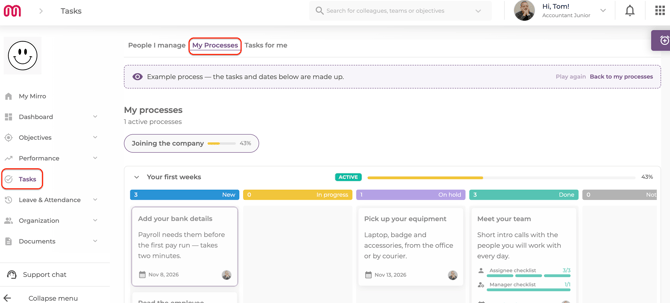
FAQ
Q: Can a Workflow Manager see processes built by someone else?
A: No. A Workflow Manager (with or without "per location") only sees the processes and workflows they personally created. Workflow Admin is the only access right that sees everything.
Q: Does Head of Department or Department performance administrator let someone build a new process?
A: No. These access rights only manage tasks for the people below them in the hierarchy. Building or editing a process needs Workflow Admin, Workflow Manager, or Workflow Manager per location.
Q: My manager isn't a Workflow Admin or Workflow Manager. Can they still finalize my process once it's done?
A: Yes. Your direct manager, the head of the department you're in and a department performance administrator can all finalize, force close, or reopen a run for people below them, regardless of whether they hold a Workflow access right.
If you need to check or change someone's access rights, see How to grant access rights to a user. If you need more details, contact us at support@mirro.io.