![mirro_logo_pnk_slogan.png]](https://help.mirro.io/hs-fs/hubfs/mirro_logo_pnk_slogan.png?height=40&name=mirro_logo_pnk_slogan.png)
Keeping your company structure organized is essential, and with Mirro, the process is simple, friendly, and intuitive! Whether you need to update your department hierarchy, names, or coordinators, our import feature helps you get it done in one go. Follow the steps below to make the magic happen.
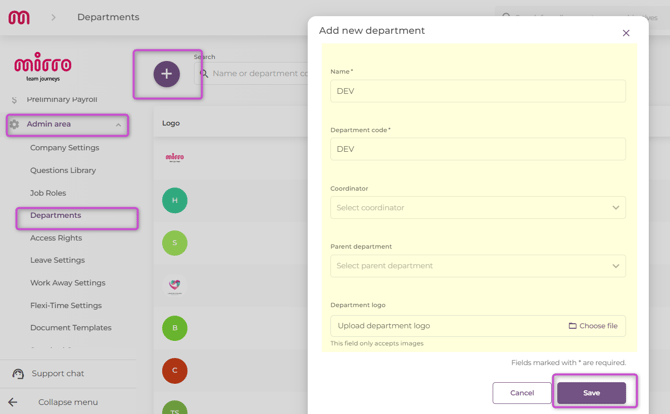
Before importing the departments and their hierarcy you need to create the departments in Mirro, either via import users (https://help.mirro.io/mirroknowledge/how-to-import-users-details) or via the interface:
Step 1 - The Import Area
Navigate to the main menu on the left side of your screen.
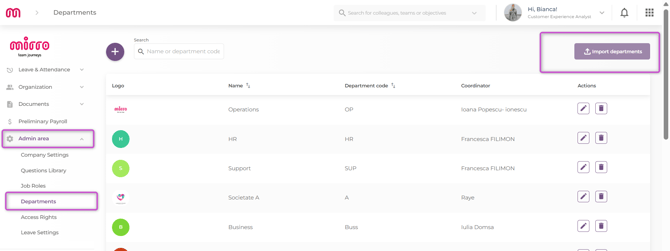
Go to Admin area > Departments. As shown in the image, you will find the Import departments button in the top right corner. Click on it to open the setup window.
Step 2: Download the Template
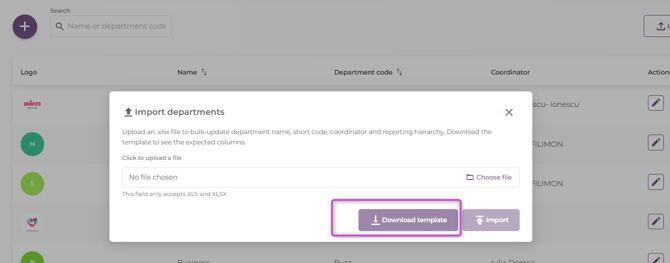
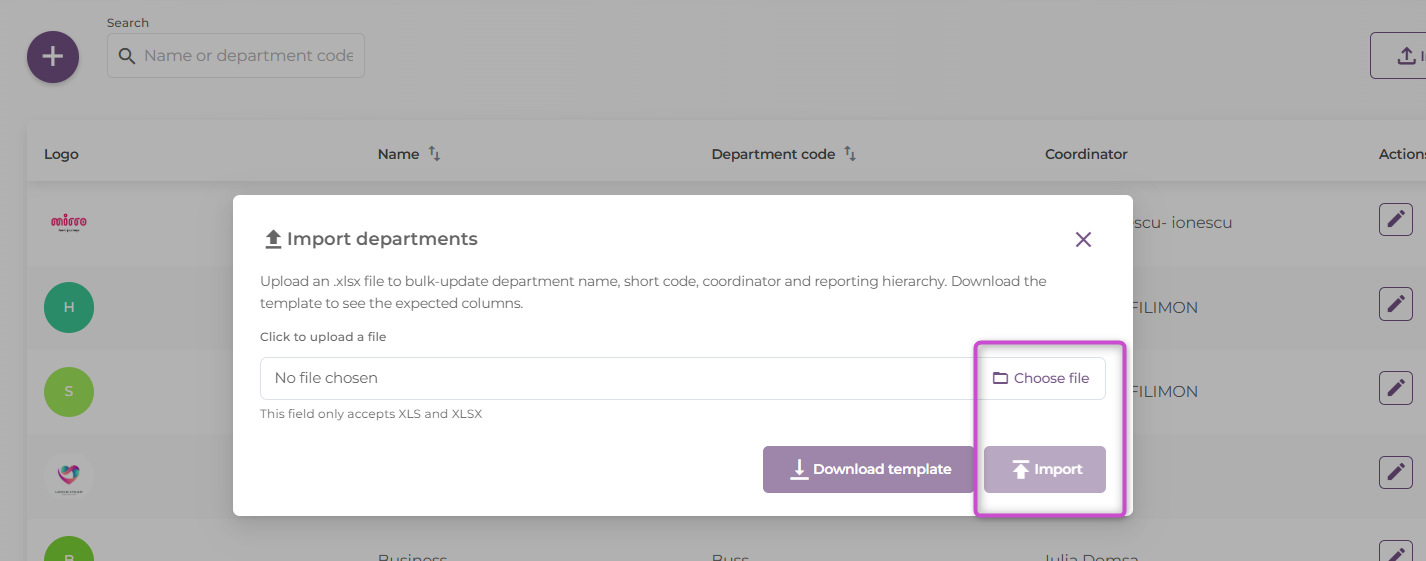
Once the import window is open, we provide you with the exact format you need to fill in, Just click on the Download template button:
3. Step 3: Fill Out the Excel File
Open the downloaded file called Import_department_hierarchy_template.xlsx .
You'll notice it's divided into three sheets: Import, ReadMe (which contains detailed instructions), and Departments (which displays your current department list).
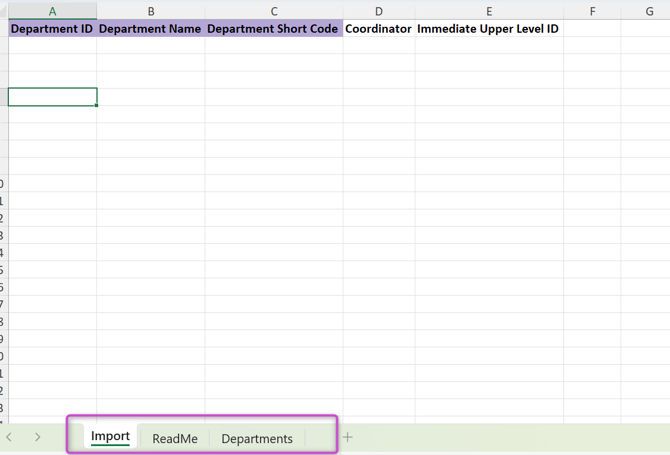
To prepare your updates, you will work exclusively in the Import sheet using the following information:
- Department ID: This numeric ID can be found in the Departments sheet. It is essential to use this ID for updates, especially if only the department code was previously set in the app.
- Coordinator (HoF - head of department): In this column, you can fill in either the coordinator's email address or their unique employee identifier.
- Immediate Upper Level ID (Parent Department): To build your hierarchy correctly, you need to link each department to a parent department. Use the numeric ID of the parent department here (which you can also easily copy from the Departments sheet).
Step 4: Upload and Import
After ensuring all the data in your Import sheet is correct, save the file. Head back to the Mirro app, click "Choose file" in the import window to select your completed document, and hit the Import button.
And that's it! Your organizational structure is now perfectly up to date. Great job! 🎉