![mirro_logo_pnk_slogan.png]](https://help.mirro.io/hs-fs/hubfs/mirro_logo_pnk_slogan.png?height=40&name=mirro_logo_pnk_slogan.png)
Where to find it
Access Processes in the main navigation. This option only appears for Workflow Admin, Workflow Manager, and Workflow Manager per location.
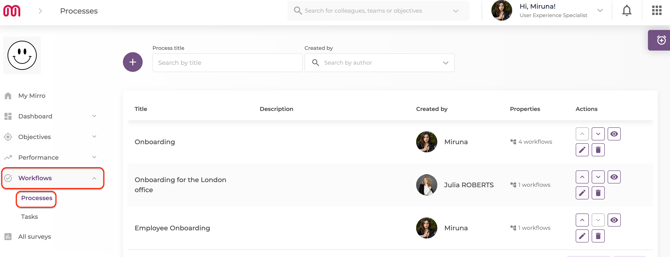
Reordering your lists
1. On the Processes list, or on the list of workflows inside a process, select Move up or Move down next to the row you want to reposition.
2. The new order is saved immediately and applies everywhere that list appears, including when triggering a process for someone.
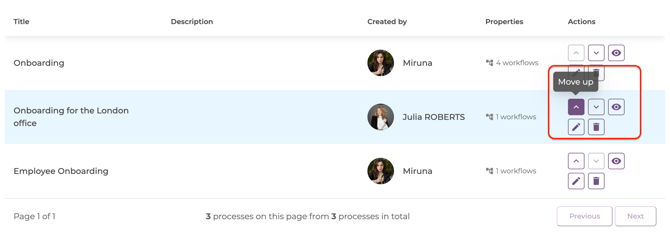
💡 Tip: Reordering workflows inside a process works for Workflow Admin, Workflow Manager, and Workflow Manager per location, for the processes they can edit. Reordering the Processes list itself is available to Workflow Admin only. A Workflow Manager or Workflow Manager per location cannot change that order, even for processes they created.
Duplicating a workflow
1. Open the process that contains the workflow you want to copy.
2. Select Duplicate workflow from the workflow's row actions, then confirm.
3. Mirro creates a copy with a new name you can edit, including every task from the original, with its checklists and its Require manager approval setting carried over.
💡 Tip: Duplicating a workflow saves you from rebuilding a near-identical one from scratch, for example when a process needs a slightly different version for a different location or role.
Monitoring every process company-wide
The Processes page doubles as a dashboard: each process shows its aggregated progress across the whole company. Select a process to see the workflows inside it, select a workflow to see every employee with an active run of it and their individual progress, and select an employee to open their full task view.
💡 Tip: A Workflow Manager or Workflow Manager per location sees this same drill-down, but only for the processes and workflows they personally created, not the whole company. See How access rights work in Workflows.
FAQ
Q: I'm a Workflow Manager. Why can't I move a process up or down in the list?
A: Reordering the Processes list is reserved for Workflow Admin. You can still reorder the workflows inside a process you created.
Q: If I duplicate a workflow, do the tasks keep their settings?
A: Yes. Every task in the copy keeps its checklists and its Require manager approval setting from the original.
If you need more details, contact us at support@mirro.io.