![mirro_logo_pnk_slogan.png]](https://help.mirro.io/hs-fs/hubfs/mirro_logo_pnk_slogan.png?height=40&name=mirro_logo_pnk_slogan.png)
Where to find it
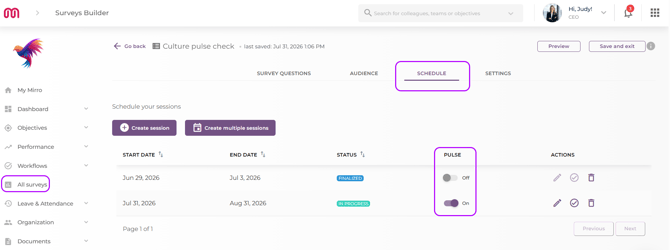
Pulse Surveys are configured from the Surveys module. Go to All Surveys in the main navigation, open an existing survey session, and look for the Pulse activation option in the session settings.
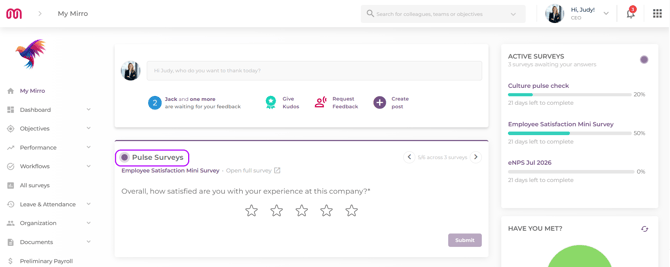
For employees, Pulse questions appear automatically in the Activity Feed on My Mirro — no navigation required.
How Pulse Surveys work
Think of a Pulse Survey as your existing survey session running in the background, delivering its questions one at a time into the places your employees already are — rather than waiting for them to come to the survey.
Here is how the experience works end to end:
For the admin:
Any active survey session can be activated as a Pulse. Once activated, Mirro begins delivering the session's questions one by one into each employee's Activity Feed. You stay in full control of which sessions run as Pulses, and all results feed back into the same survey dashboard you already use — there is no separate reporting tool to learn.
For the employee:
A question appears in the Activity Feed widget while they are already in Mirro going about their day. They answer it in seconds and move on. The next time they visit, the next question may be waiting. There is no pressure to sit down and complete the full survey in one go.
How to activate a Pulse Survey
- Go to All Surveys in the main navigation.
- Open the survey session you want to activate as a Pulse.
- In the schedule tab, find the Pulse activation option and enable it.
- From that moment, questions from this session begin appearing in the Activity Feed for employees in the session's audience.
How employees interact with Pulse questions
When a Pulse question appears in the Activity Feed, the employee can:
- Answer directly in the widget — for most question types, the answer can be given without leaving the feed
- Navigate between questions — if multiple questions are available, the employee can move through them at their own pace
- Skip non-required questions — if a question is not mandatory, the employee can skip it and it will not block progress through the rest of the session
- Open a focused view for complex questions — for matrix questions or question types that need more space, a single tap opens a focused modal. The employee answers and closes it, then returns to the feed immediately
How Pulse answers connect to the full survey
Pulse Surveys and the full survey session are the same thing — Pulse is simply a different delivery mechanism for the same questions. This means:
- Every answer given through the Pulse widget counts toward the employee's completion percentage on the full survey session
- If an employee has already answered some questions directly in the full survey, only the remaining unanswered questions appear in the Pulse widget — nothing is repeated
- If an employee completes all questions through the Pulse widget, their survey session is marked as fully complete
- Results from Pulse answers appear in the same survey dashboard as all other responses — they are not separated or tagged differently
How completion is calculated
The completion percentage shown on the survey dashboard reflects all responses — whether given through the full survey form or through the Pulse widget. There is no distinction in the results between how an answer was submitted.
💡 Tip: Pulse Surveys work best for sessions with a moderate number of questions — enough that spreading them across multiple visits feels natural, rather than a single two-question session that could be completed in one sitting anyway. If you want to maximise response rates on a longer survey, activating it as a Pulse is the most effective way to get all questions answered without making it feel like a task.
Q: Can an employee answer the same question twice — once in the full survey and once in the Pulse widget?
A: No. Questions the employee has already answered in the full survey do not appear in the Pulse widget. The two are always in sync.
Q: Can all question types be delivered through Pulse?
A: Most question types are delivered directly in the Activity Feed widget. Matrix questions and more complex types open in a focused modal — the employee answers there and returns to the feed immediately after.
Q: Does activating Pulse on a session affect employees who have already started the survey in the traditional form?
A: No. Employees who have already answered some questions through the full survey form will only see their remaining unanswered questions in the Pulse widget.
Q: Can I deactivate Pulse on a session after it has been enabled?
A: Yes, you have full control over this option even if the session is in Progress.