![mirro_logo_pnk_slogan.png]](https://help.mirro.io/hs-fs/hubfs/mirro_logo_pnk_slogan.png?height=40&name=mirro_logo_pnk_slogan.png)
Every company location in Mirro has its own working schedule. Shifts & Schedule uses it as the default shift for any employee who does not have a specific shift assigned on a given day, so getting it right matters even before you define your first shift type.
Where to find it
Access Company Settings and open Company Addresses. Select a location to edit it, or add a new one. See How to set-up your general company settings for the full location setup flow.

Setting the working schedule
1. Open a location's edit form, or the Add a new company location form for a new one.
2. Scroll to the Working schedule section.
3. Set Time Start and Time End for the location.
4. Set a Break (min) if the working day includes one.
5. Use Customize your location's working days to choose which days of the week count as working days for this location.
6. Save your changes.
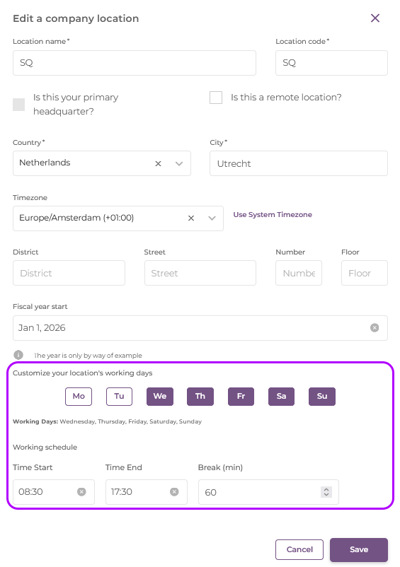
💡 Tip: A new company location starts pre-filled with 9:00 AM to 5:00 PM and a 60 minute break. Update these to the location's real hours before saving, since they immediately become that location's default schedule.
How this feeds into Shifts & Schedule
- If a location has its own working schedule set, that becomes its default shift. Any day without a specific shift assigned shows these hours on both My Schedule and Shifts & Schedule.
- If a location has nothing set, Mirro uses your company's headquarters address instead.
- Changing a location's working schedule updates its default shift right away. This only affects days that are relying on the default; a day where someone already has a specific shift type assigned keeps that shift's own hours.
⚠️ Warning: Deleting a company location also removes its employees from it. For a month that is already closed, those employees keep the shift data they had at the time. For an open month, their cells on the schedule become empty, the same as Clear schedule. If the location was the only one assigned to an Organization Specialist Per Location access right, that person loses access to Shifts & Schedule entirely and keeps only My Schedule.
FAQ
Q: If I change a location's hours, does it change shifts I already assigned to specific employees?
A: No. It only changes what shows up for days relying on the default schedule. A day with a specific shift type assigned is not affected.
Q: What happens to a location with no working schedule set at all?
A: Mirro falls back to your company's headquarters address. If neither has a working schedule configured.
Once your locations have the right working hours, you are ready to define shift types for your team. See How to create, edit, and delete shift types. If you need more details, contact us at support@mirro.io.