![mirro_logo_pnk_slogan.png]](https://help.mirro.io/hs-fs/hubfs/mirro_logo_pnk_slogan.png?height=40&name=mirro_logo_pnk_slogan.png)
Where to find it
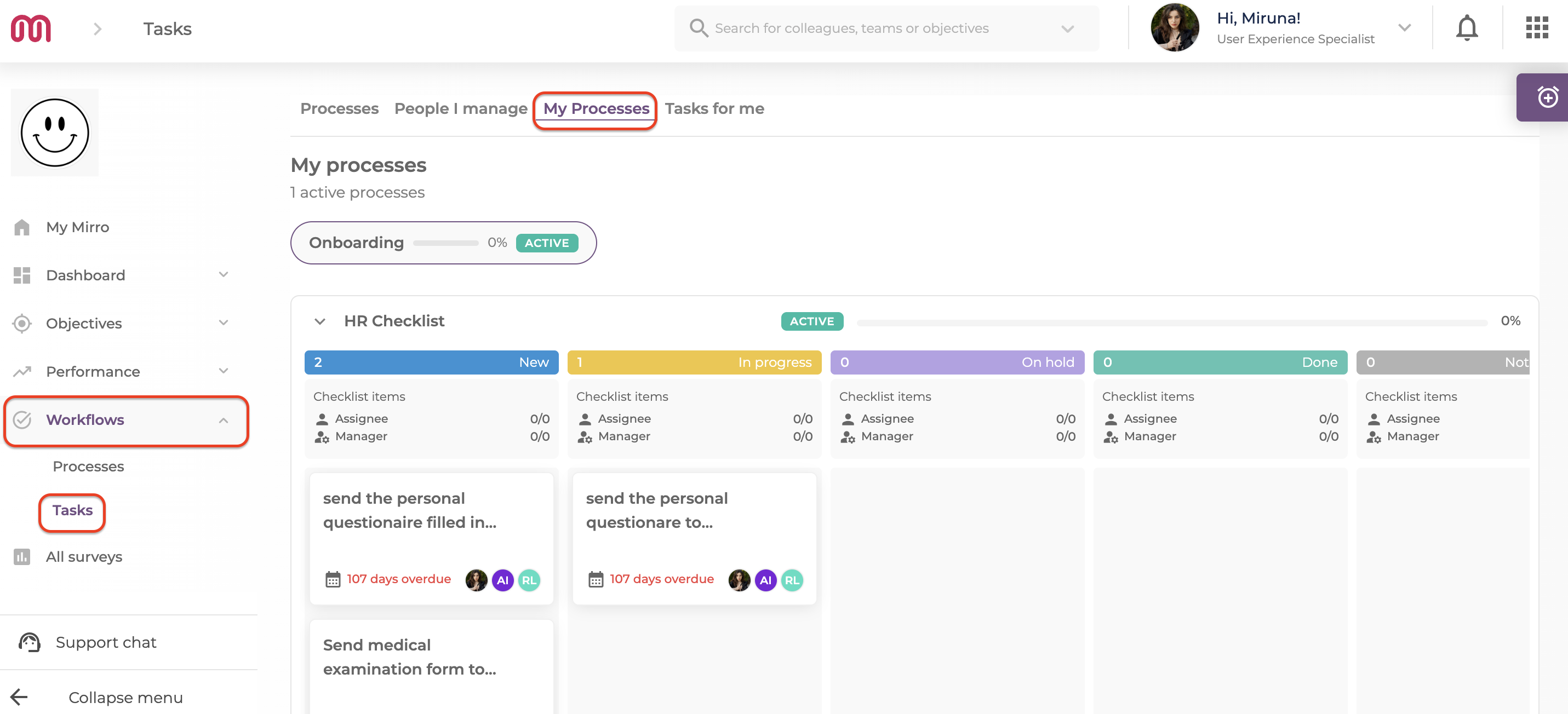
Access Tasks and select My Processes.
Reading your board
1. Select the process you want from the tabs at the top of the page. Each tab is one process currently running for you, and its description, if one was written, appears under its name.
2. Look at the board below it. Each workflow inside that process gets its own row, with five columns: New, In progress, On hold, Done, and Not applicable.
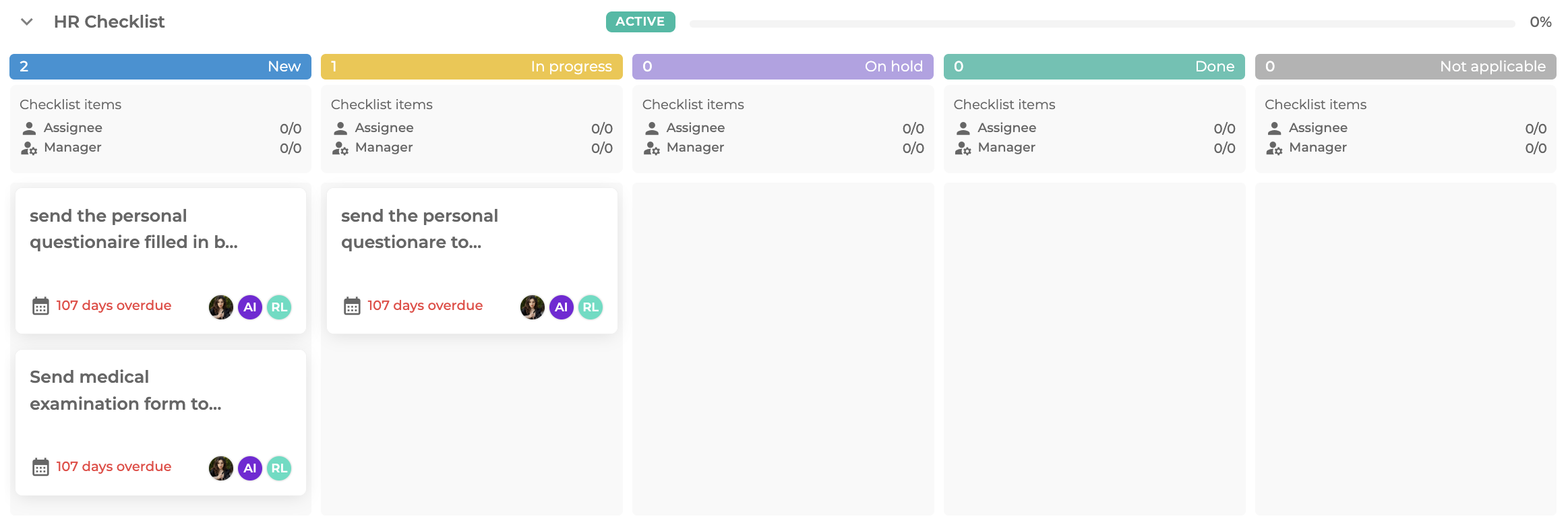
3. Read a task's card for its title and deadline. Click the card to open its full details.
Moving a task forward
1. Drag a task's card into the column that matches its new status.
2. If you prefer not to drag, select the ⋮ menu on the card and choose Change status instead.
3. On a phone, use the quick buttons on the card to move it to the next status, mark it Done, or mark it Not applicable.
💡 Tip: Some tasks cannot be moved by you, no matter which of these three ways you try. This happens when the task has Require manager approval turned on. See What "Require manager approval" means for your tasks.
Inside a task
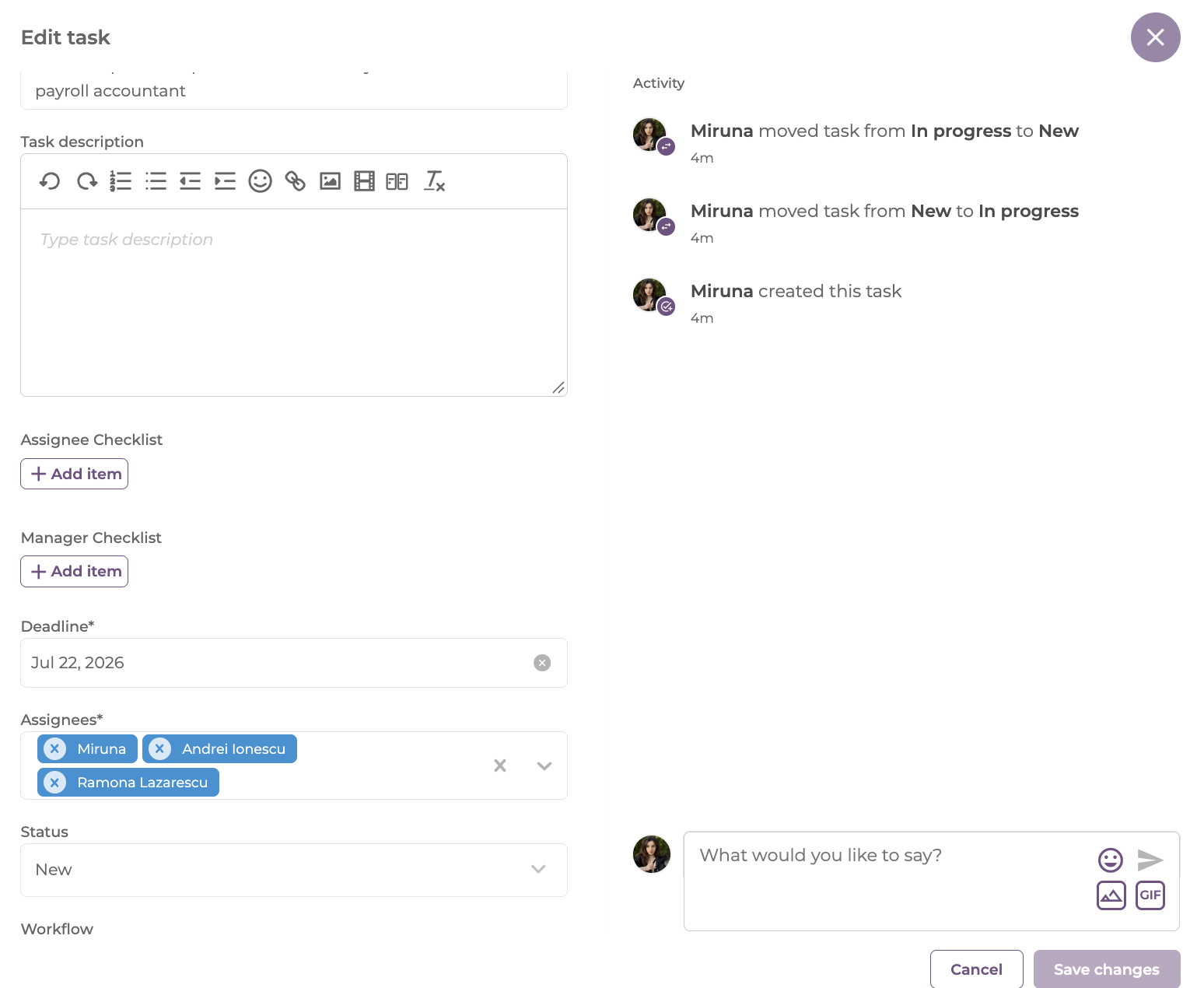
Open a task's card to see:
- Its full description, which can include images. Select an image to view it full screen.
- Your Employee Checklist, where you can tick off items and, unless the task is approval-gated, add or remove your own items.
- The Manager Checklist, if the task has one. You can see it, but only a manager can tick, add, remove, or edit its items.
- Its deadline and assignees.
- An Activity log recording every status change, edit, and comment on the task, with who made it and when.
A task that is already Done or Not applicable locks its title, description, checklists, deadline, and assignees for everyone, including managers. You can still change its status and still add comments.
Tasks assigned to you from someone else's processSelect Tasks for me instead of My Processes to see tasks that belong to a process running for a colleague, but were assigned to you, for example an approval, a handover, or a piece of paperwork. A task here drops off the list on its own once it reaches Done or Not applicable, so you never need to clear it out manually.
FAQ
Q: I can't find a task I had last week. Where did it go?
A: Check the right process tab in My Processes, since tasks are grouped by the workflow they belong to. If it was assigned to you from someone else's process, it may have already reached Done or Not applicable and dropped off Tasks for me.
Q: Can I delete a task I don't need?
A: No. Deleting a task is only available to whoever manages the process (Workflow Admin, Workflow Manager, or Workflow Manager per location), not to the task's assignee.
If a task on your board looks locked and you are not sure why, ask whoever manages that process. If you need more details, contact us at support@mirro.io.