![mirro_logo_pnk_slogan.png]](https://help.mirro.io/hs-fs/hubfs/mirro_logo_pnk_slogan.png?height=40&name=mirro_logo_pnk_slogan.png)
How to add a new objective:
Based on the roles that you have in Mirro, different objectives can be added:
- A basic user can add individual objectives;
- A team leader can add individual objectives and team objectives;
- A department's coordinator can add department, team and individual objectives;
- A user with the access right - OKRs manager - can add and edit objectives at all levels, including organization objectives;
To add a new objective, you will have to access the module Objectives- My OKRs, where you can click on + Add objective: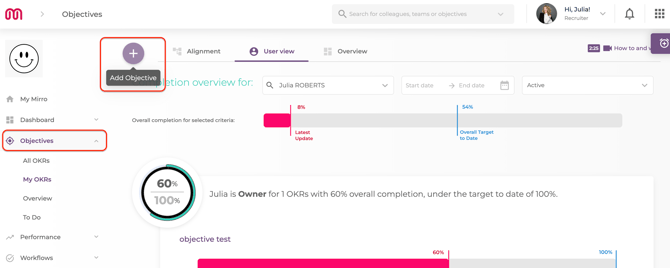
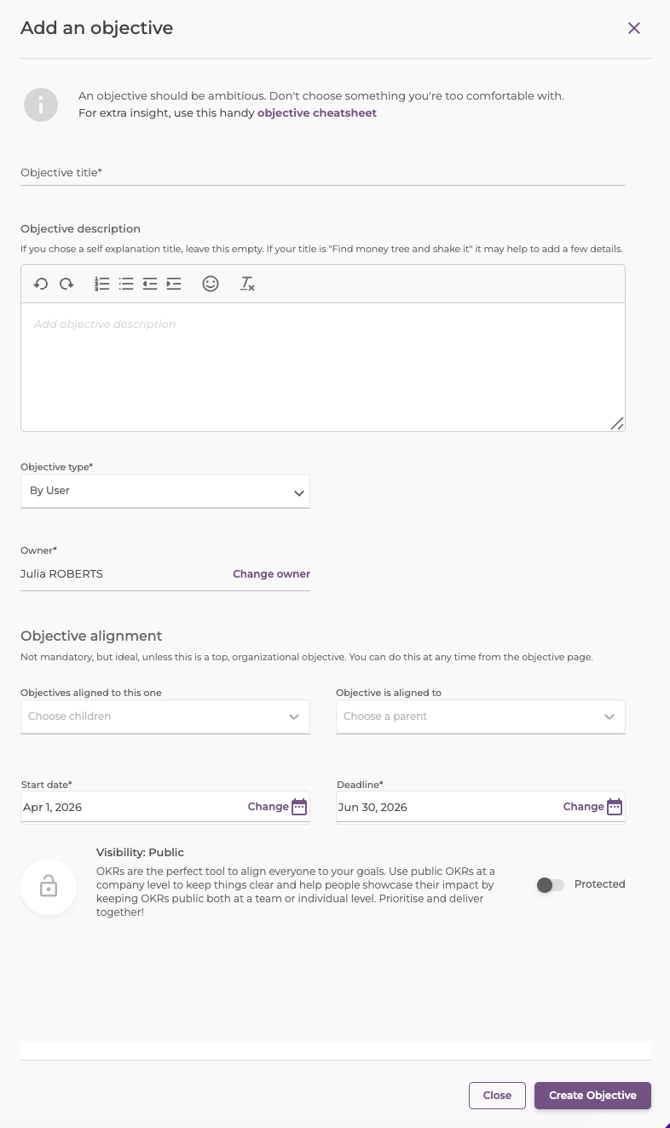
A new form will be opened for you and you will need to fill in the details of the objective that you would like to add.
Imagine you would like to add a personal objective to ensure increasing individual performance and contribution to the team efficiency.
- Title: A short concise title to state the objective;
- Description: A short description of the objective;
- Type: Objective’s type, which would be set as individual; you can change it to team or department OKRs, if you are a team leader or head of department;
- Owner: The person who owns the objective. Your user will be assigned by default;
- Objective alignment: You can align your personal objective to an organizational, team or department OKR; by setting the parent OKR, your objective will be shown below, and your objective will be considering to be contributing to the parent OKR;
- Deadline: The deadline of the objective, the moment when you consider you will reach your goal;
- Visibility: Use public OKRs at the company level to keep things clear and assist people in demonstrating their impact;
If you would like to add a private objective, you can read our article: How to create a private objective.
How to add supportive details of an objective:
After saving the changes, you will be brought to the details of the objective to finish the process. In this section, you have the possibility to:
1. Visualize and edit the objective's details;How to add a Key Result:
An objective can have from 2 to 5 key results which will help you to reach your goal.
Key results should focus on the outcome while being measurable with a concrete time schedule.
To add a key result to your objective, you will have to click on Add key result and a new page will open, letting you complete the details of the KR: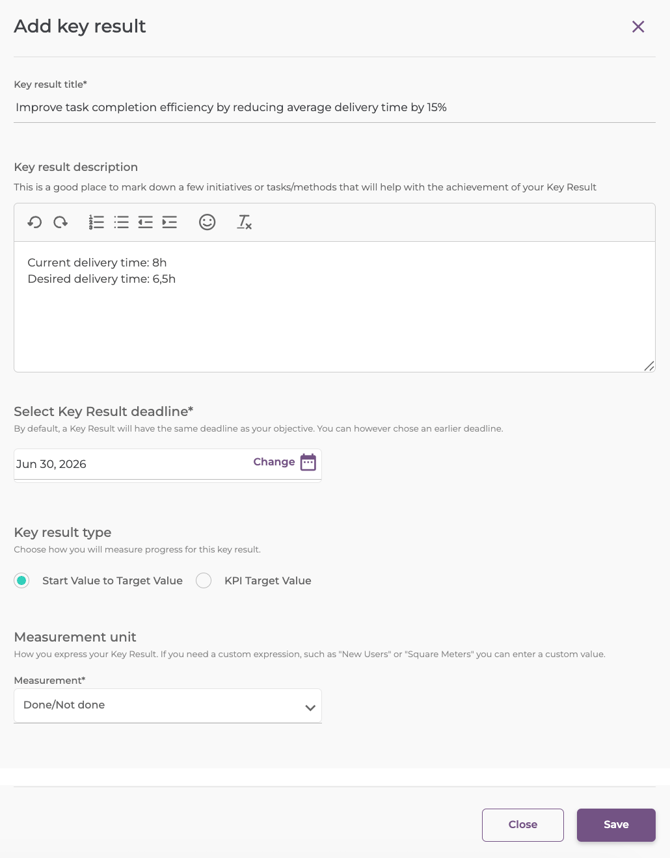
- Key result title: the title of your key result; it should be short, specific, and measurable in intent; the goal is that someone understands what is being improved or achieved without needing a paragraph;
- Key result description: this is where you add clarity, not new ideas; a good description explains how the metric is measured, what “good” means, and any context needed to avoid confusion; it should remove ambiguity, not repeat the title;
- Key result deadline: the time boundary for when the result should be achieved;
- Key result type:
-Start Value to Target Value: this type is progress-based improvement over time; it measures movement from a current baseline to a desired end state;
-KPI Target Value: this type tracks performance against a defined target threshold; you are not measuring improvement from a baseline, you are measuring whether you hit a specific KPI level; - Measurement unit: this defines how the value is quantified; it's the "language" of the metric- what the number actually represents;
After filling in the details of the key result, you will need to save the changes to be reflected in the application.
How to update a Key Result:
When the key result will be saved, it will be listed in the details of the objective. Once a key result has been added to the objective, the progress of the objective can be completed only through the key result. To update the progress of the objective, you will need to access the option Update: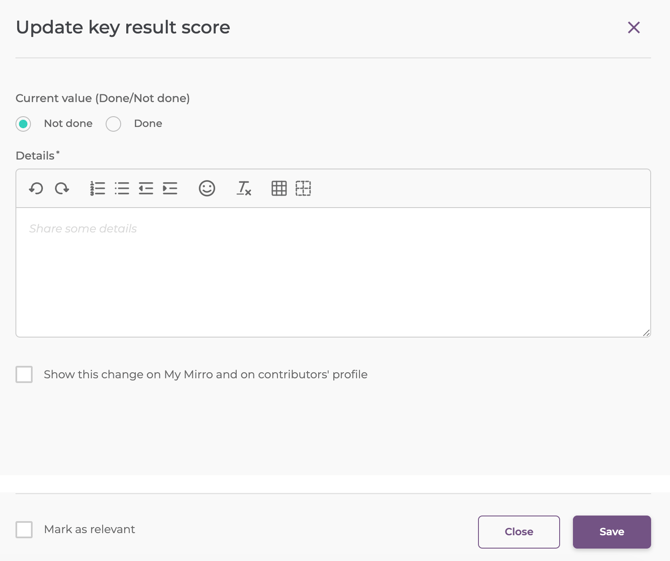
After updating the key result progress, the changes will be listed in the objective details and in the feed if you select to show them. Both the progress bar of the key result and of the objective will be adjusted accordingly. If you have multiple key results, the objective progress bar will be modified based on all the key results linked.
What are weighted key results:
Weighted Key Results are Key Results that do not all contribute equally to the overall Objective score. Instead, each Key Result is assigned a weight that represents its relative importance.
By default, all KRs from an Objective have the same “weight”, meaning that the overall Objective score is the Mean Average of individual KR scores, in %.
For example, an objective that has 4 KRs, each KR has a (100/4) = 25% weight for the overall completion. By adding weight per individual KR, means that you can alter individual weight of any KR, with the only constraint being that the sum of the weights is 100%. The calculation for the overall completion of the Objective will be a weighted average of KRs completion, according to their respective weights.
What are the steps to adding a Weighted Key Result?
1. add an objective manually;
2. add key results to the objective; after that, you will see the option edit weights to that key results: a modal will pop up, depicting all of the KRs and an input field to their right. This input field sets the percentage of weight (0-100) for each KR.
An indicator of the total sum of percentages will be displayed, helping users easily input the desired amounts;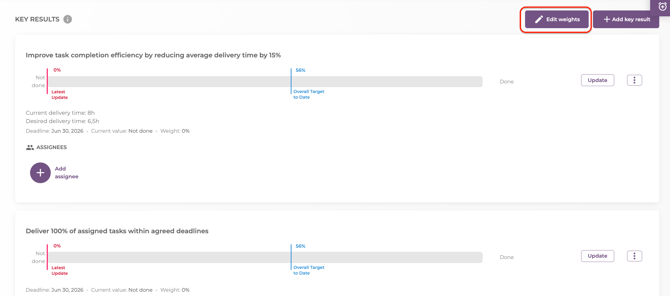
3. validate total score of 100 for KR weights;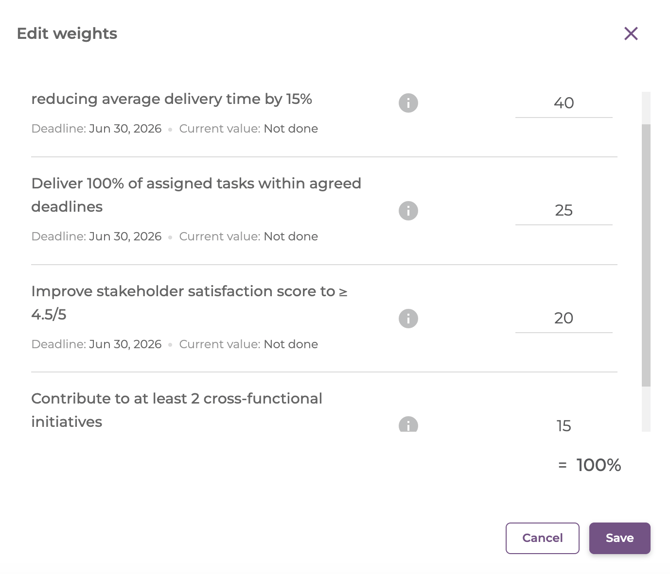
When adding extra Key Results after changing weights:
If you set specific weights for the KRs added and add a new KR, you will be prompted that the current KR weight will be set to “0”, and you need to adjust the weights accordingly;
When attaching a file to an OKR:
An OKR owner or a contributor, can, at all times attach different documents to an objective. The action will be done via an upload modal (multi-upload possible). The attached documents will be visible as tags in the OKR header section-preview, remove and download actions available.
How to keep track of the OKR history:
Specific updates history to share with everyone- never skip a beat about what happened with an OKR. How each update impacted the overall result, how you guys worked together, and all history in the objective updates section: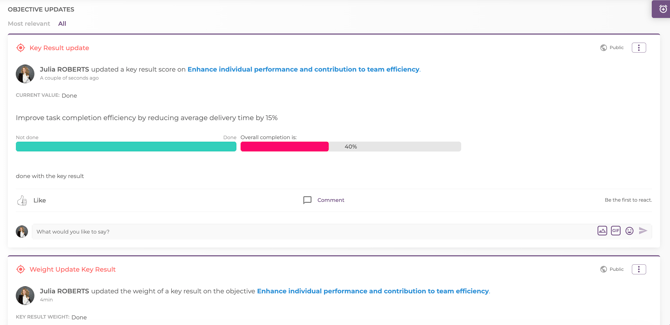
If you want to know more about OKRs with targets, you can read our article: How to add OKRs with targets.