![mirro_logo_pnk_slogan.png]](https://help.mirro.io/hs-fs/hubfs/mirro_logo_pnk_slogan.png?height=40&name=mirro_logo_pnk_slogan.png)
Where to find it
Access Processes in the main navigation. This option only appears for Workflow Admin, Workflow Manager, and Workflow Manager per location.
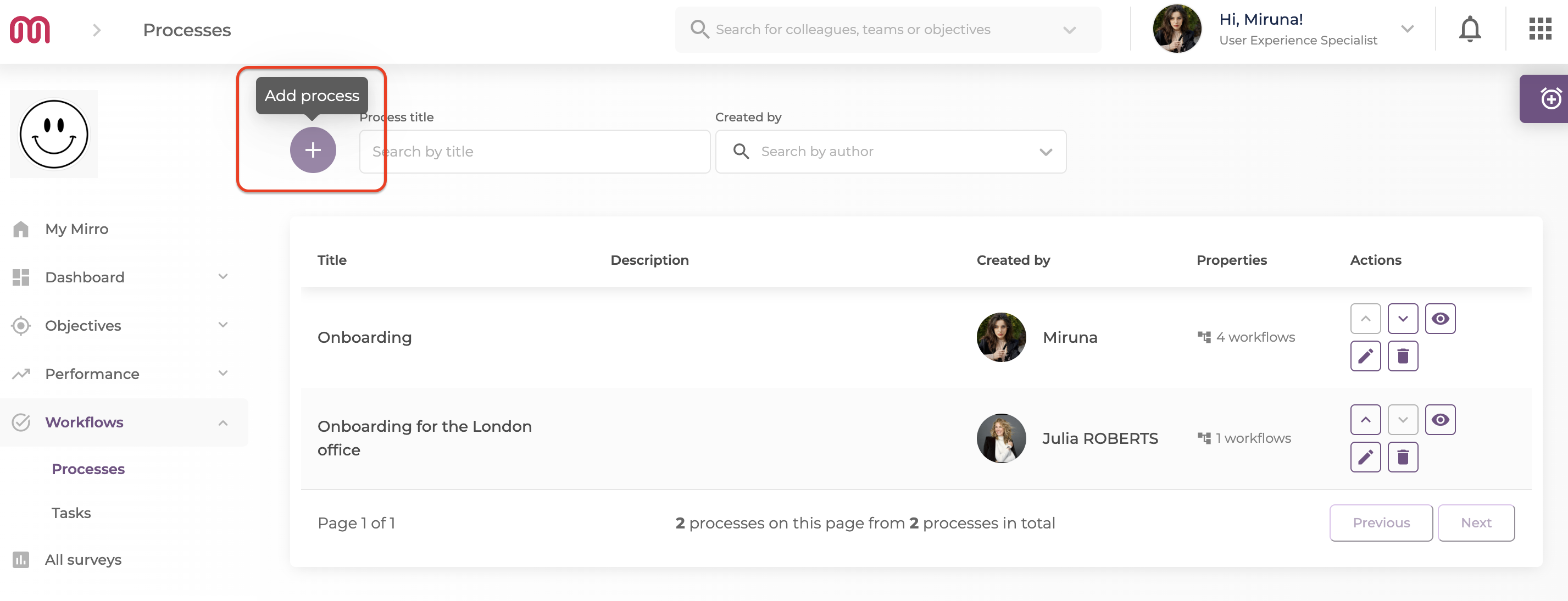
Step 1: create a process
1. Select Add process and give it a name.
2. Open the process and select Add workflow to create the first workflow inside it.
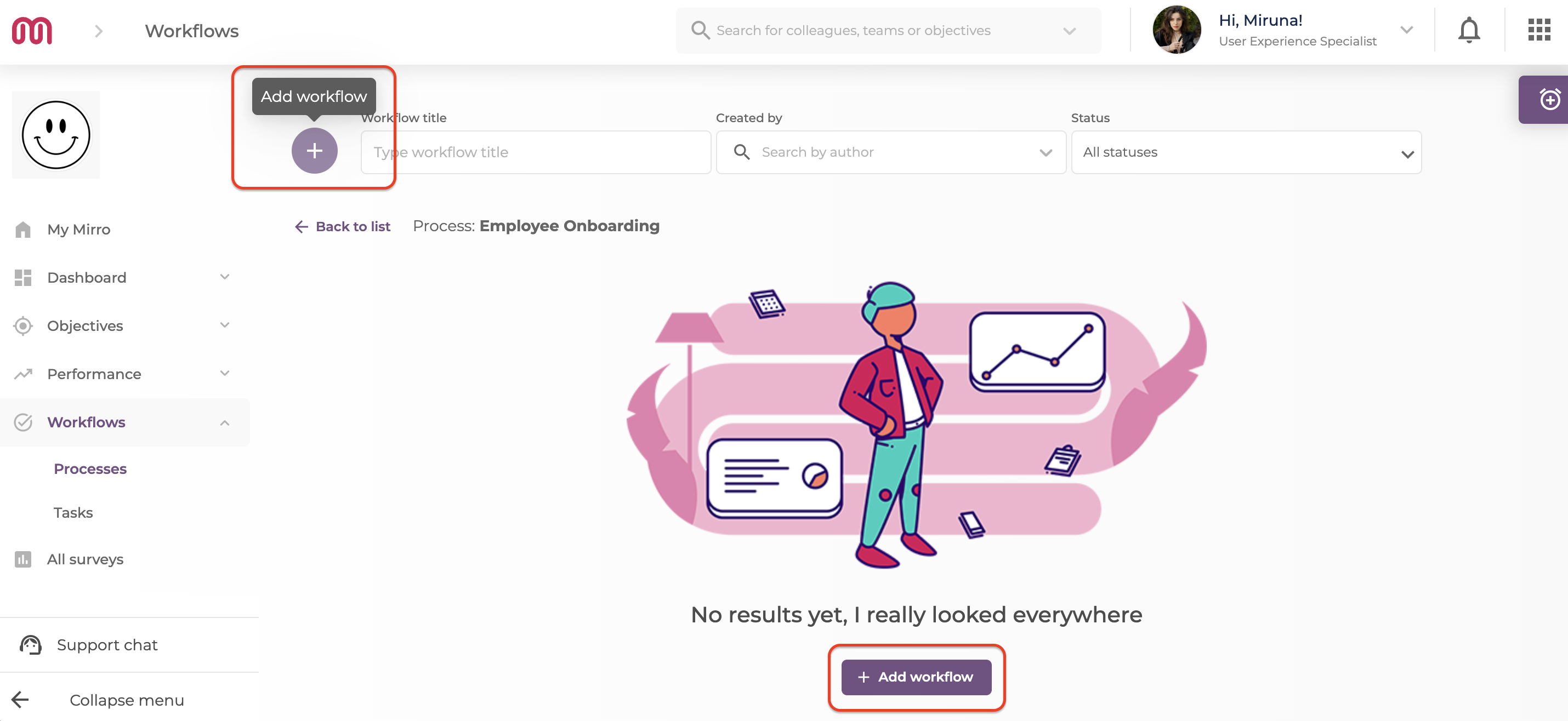
Step 2: fill in the Details tab
1. Enter a Workflow title and, optionally, a Workflow description. Whatever you write here shows up later under the workflow's name on every Tasks tab, so it is worth being specific.
2. Choose how it triggers: Manual (you or a manager start it whenever it is needed) or Automatic (Mirro starts it on its own).
- For Automatic, set the Event it should watch for (such as a hire date) and Days from event, which is how many days after that event the workflow should start.
- Either way, set Deadline in days, the number of days allowed to complete the workflow once it starts.
3. Decide whether managers can add extra, run-specific tasks to an active run of this workflow on top of the ones you define. Turn this off for a workflow that must run identically for everyone, such as a compliance checklist.
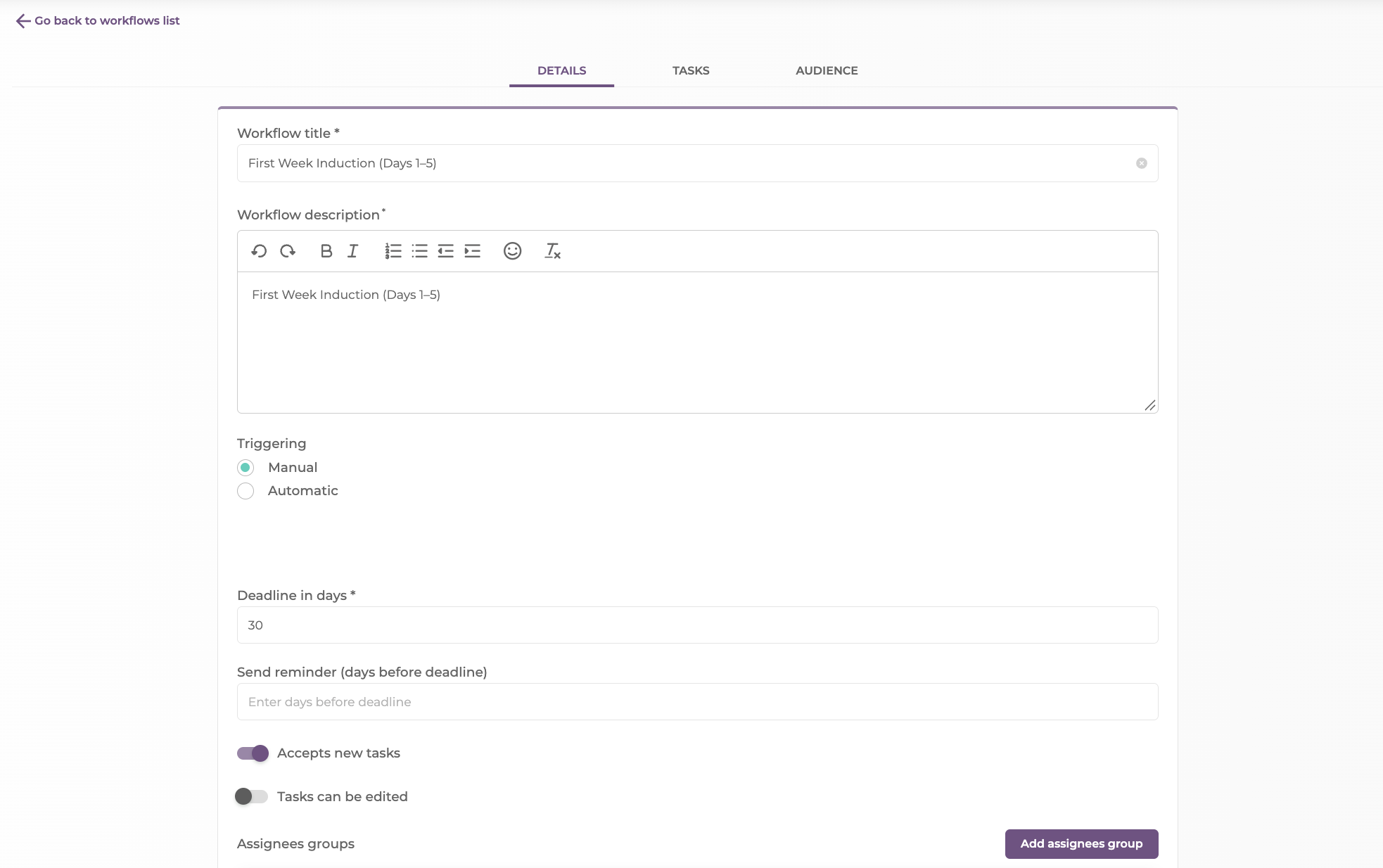
💡 Tip: The workflow builder saves as you go. There is no Save button on this screen, just a Last saved indicator confirming your changes are kept.
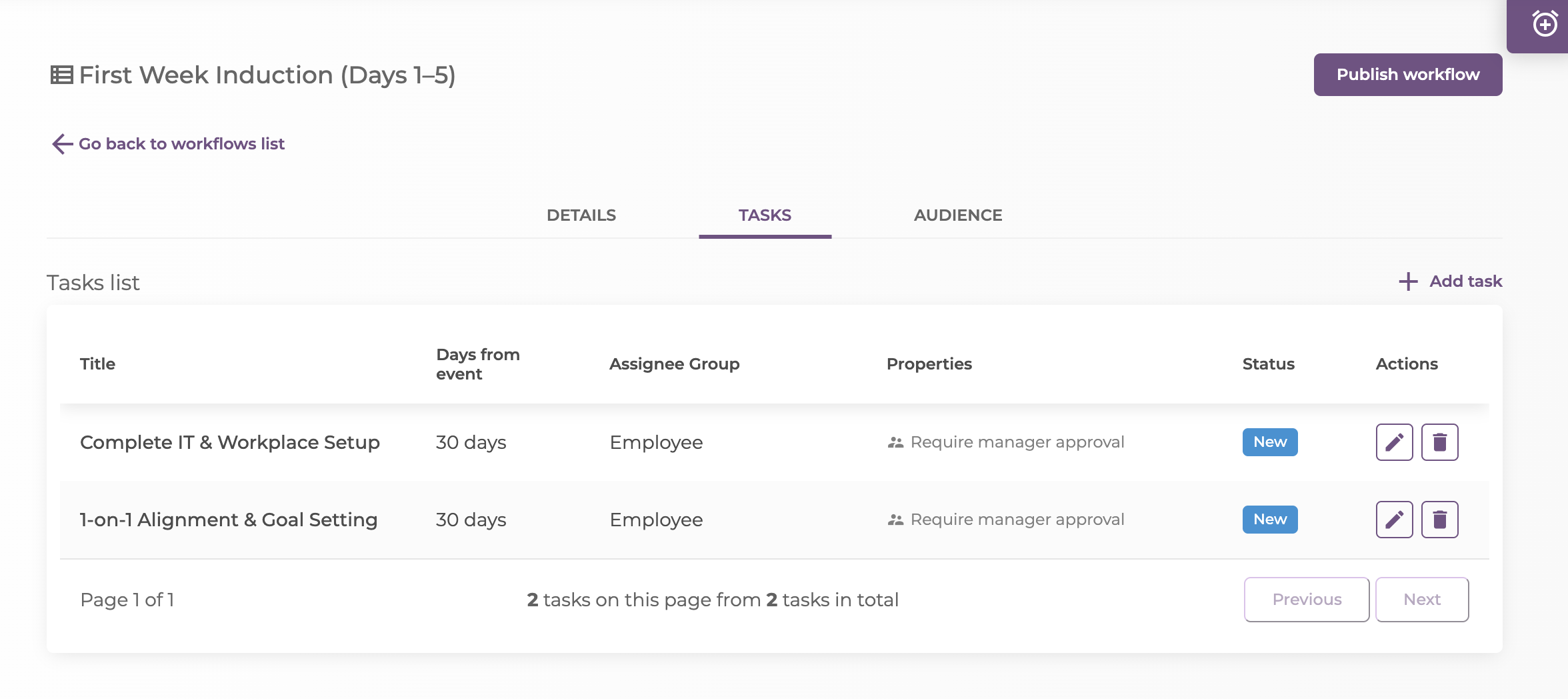
Step 3: add tasks
1. Switch to the Tasks tab and select Add task.
2. Fill in the Task title and, optionally, a Task description.
3. Add an Employee Checklist, a Manager Checklist, or both, using Add item under each. These are independent of each other.
4. Set a Deadline for the task and choose its Assignees.
5. Turn on Require manager approval if only a manager should be able to move this specific task to a final status. Leaving it off lets the assignee update it themselves. See What "Require manager approval" means for your tasks.
6. Select Save changes.
💡 Tip: If the people who should be assigned to a task do not fit the usual categories, select Add assignees group on the Details tab and type a name for the group you need, then search for the colleagues who belong in it. There are no pre-built groups to start from; every group is one you define.
Step 4: set the audience
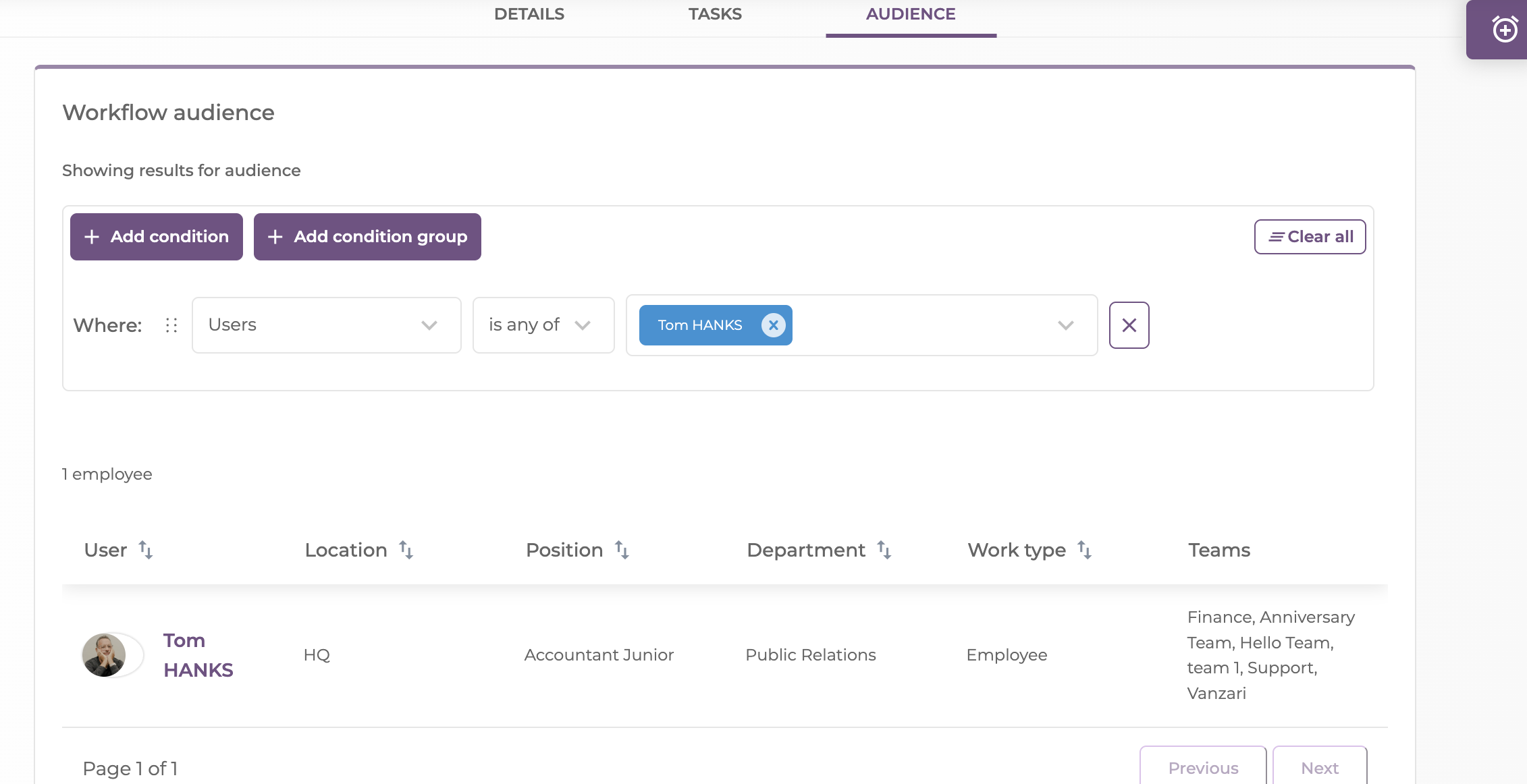
1. Switch to the Audience tab.
2. Select add condition to target by a single criterion, such as Departments, Teams, Location, Job role, Tenure, or specific Users.
3. Select add condition group instead if you need to combine several criteria, for example only certain users from specific departments.
4. The bottom of the page lists everyone currently matching your conditions, so you can check your targeting before publishing.
Step 5: publish
Once all three tabs are filled in, select Publish workflow. It can now be triggered, manually or automatically depending on what you set in the Details tab.
Triggering it for someone- From anywhere in Mirro, search for the employee, open their profile, and select Start workflow.
- From Tasks -People I manage, open the employee's card and select Trigger workflow instead. See How to track your team's processes.
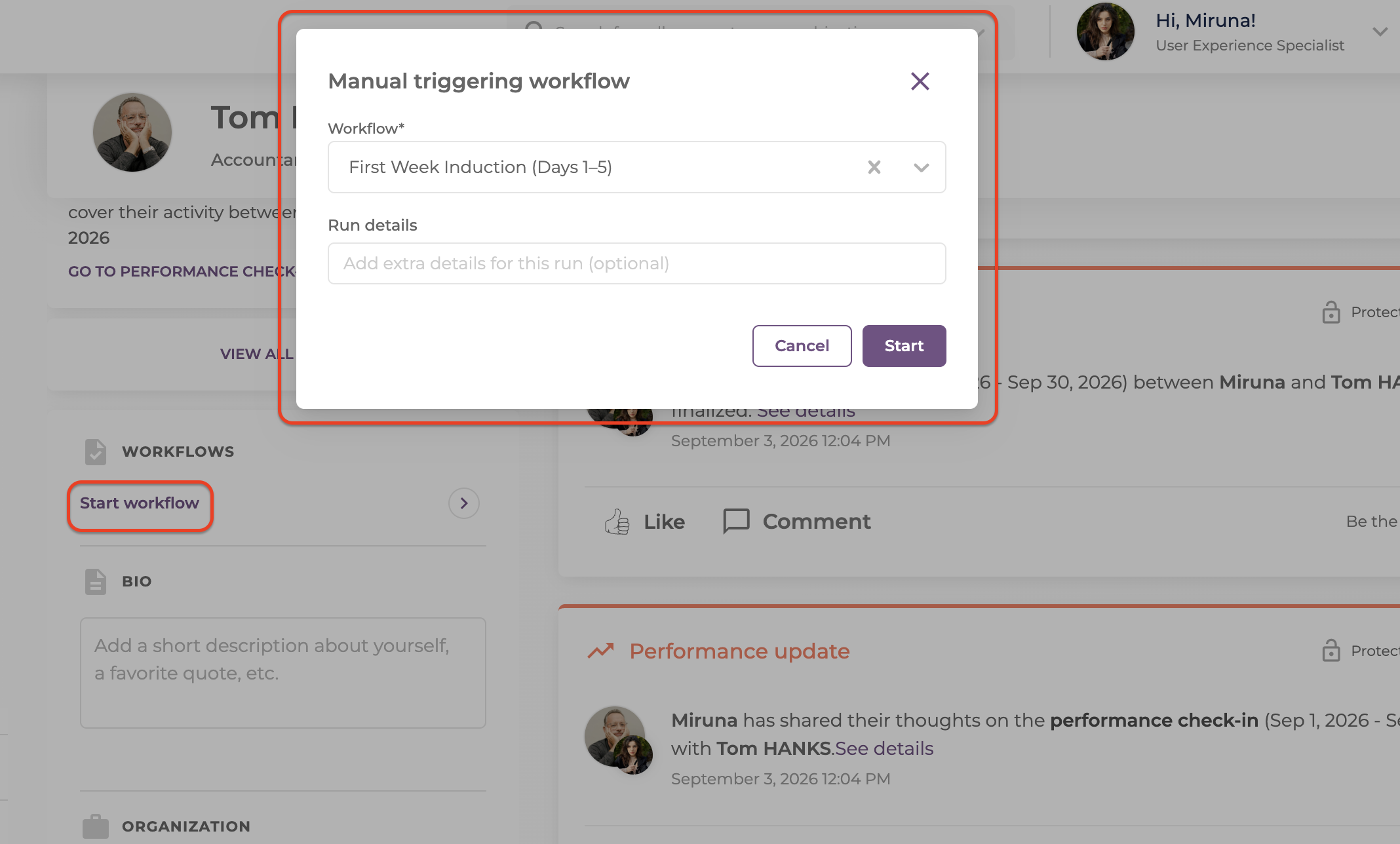
Both open the same Manual triggering workflow picker, where you choose which published workflow to start for that person.
⚠️ Warning: Deleting a process unlinks every workflow inside it rather than deleting the workflows themselves. Deleting a single workflow removes it outright. Either action needs a confirmation, since it cannot be undone.
FAQ
Q: Can I edit a workflow after it is published?
A: Yes, through the same three tabs. Changes apply to runs that have not started yet; a run already in progress keeps the task list it started with, except for any tasks a manager added to it directly.
Q: What happens if I never set up an Audience?
A: A workflow with no audience configured has nobody to trigger it for, whether manually or automatically, since there is no one who matches.
See How to reorder, duplicate, and monitor processes once you have more than one workflow to manage. If you need more details, contact us at support@mirro.io.